How to join your Minecraft server
Welcome to your own Minecraft adventure! 🎮
In this guide we explain step by step how to connect to your Minecraft Java Edition server at OXY.Games.
💡 Tip: Even if this is your first time, you’ll be online within a few minutes. Just follow the steps calmly ⛏️
📋 What do you need?
Before you can join your server, make sure you have:
- ✅ Minecraft Java Edition
- ✅ Server Address (for example:
play.yourserver.comor123.45.67.89:25565) - ✅ The correct Minecraft version
- ✅ A stable internet connection
💡 You can find the server address and version in the OXY.Games control panel or in the activation email.
ℹ️ Which Minecraft version is my server running?
OXY.Games servers usually run the most recent Minecraft server version.
You can easily check which version your server is using in the control panel:
- Go to More → Versions
- There you can see the currently active version
- From there, you can also change the server version
👉 Tutorial:
https://docs.oxy.games/en/games/minecraft/server-setup/versies/
🎮 Step-by-step: join your server (Java Edition)
Step 1: Start Minecraft (correct version)
Open the Minecraft Launcher and make sure the selected version matches your server version.
Then click Play.
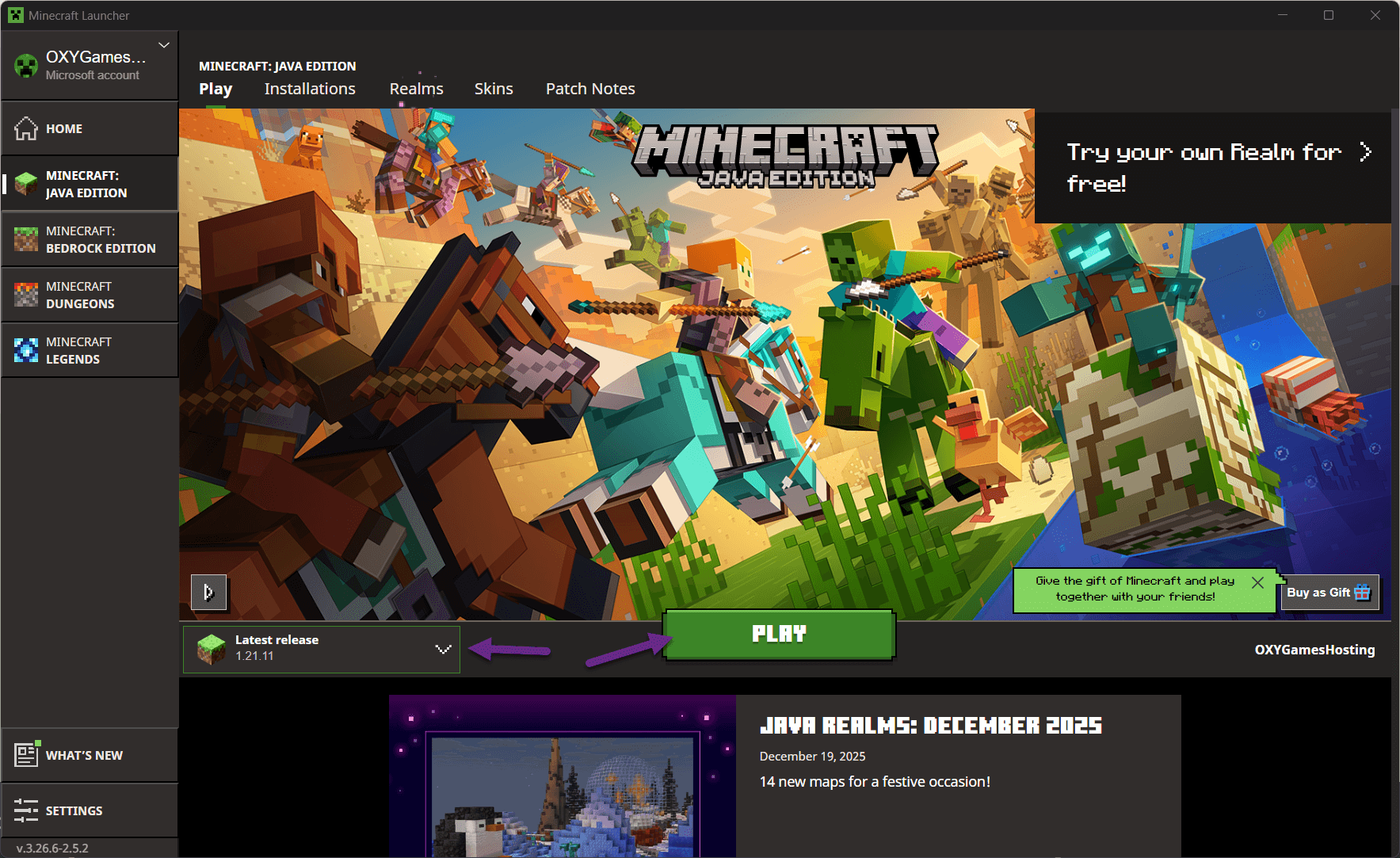
⚠️ If your server runs on 1.21.11, you must select exactly the same version in the launcher.
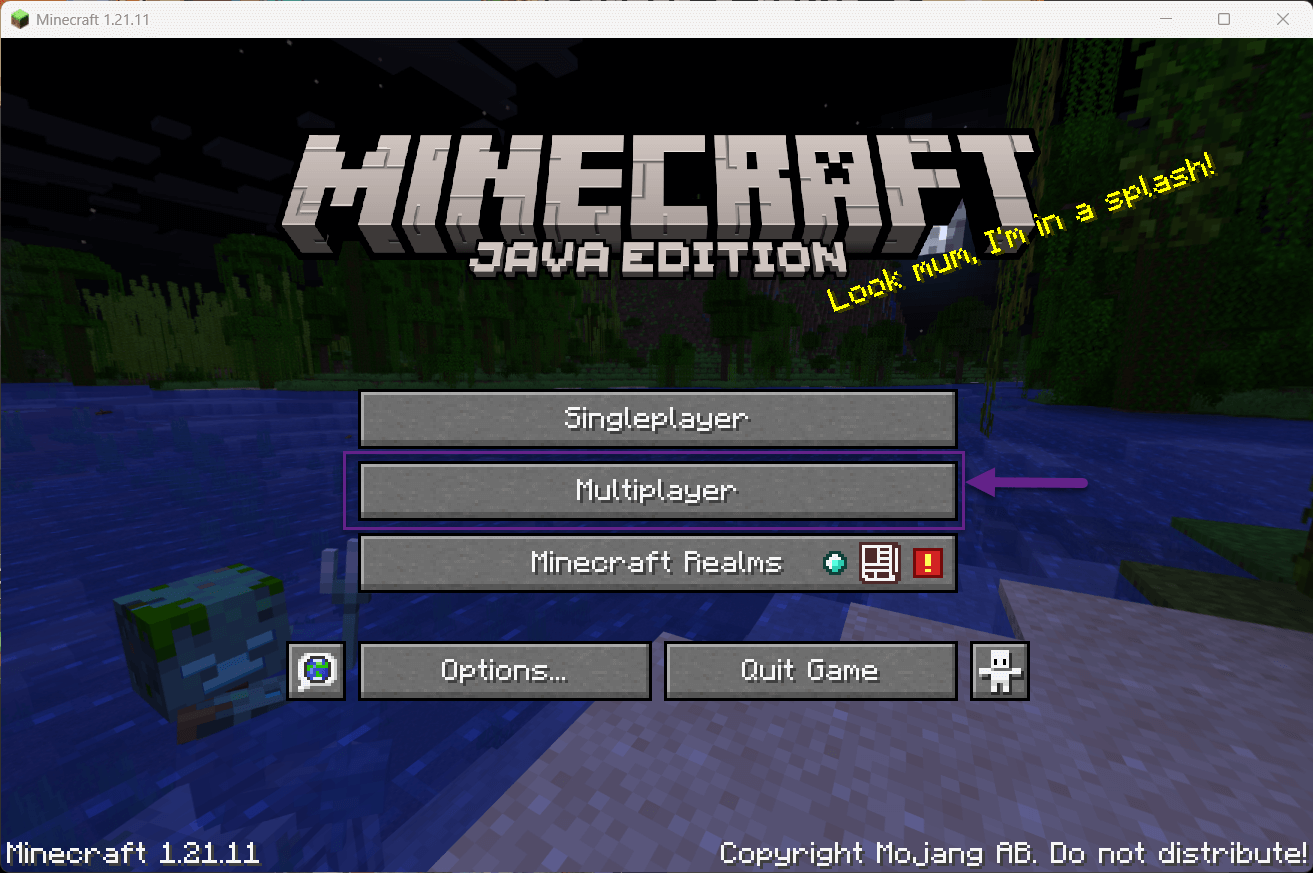
Step 2: Click Multiplayer
Once Minecraft has started, you will see the main menu.
Click Multiplayer.
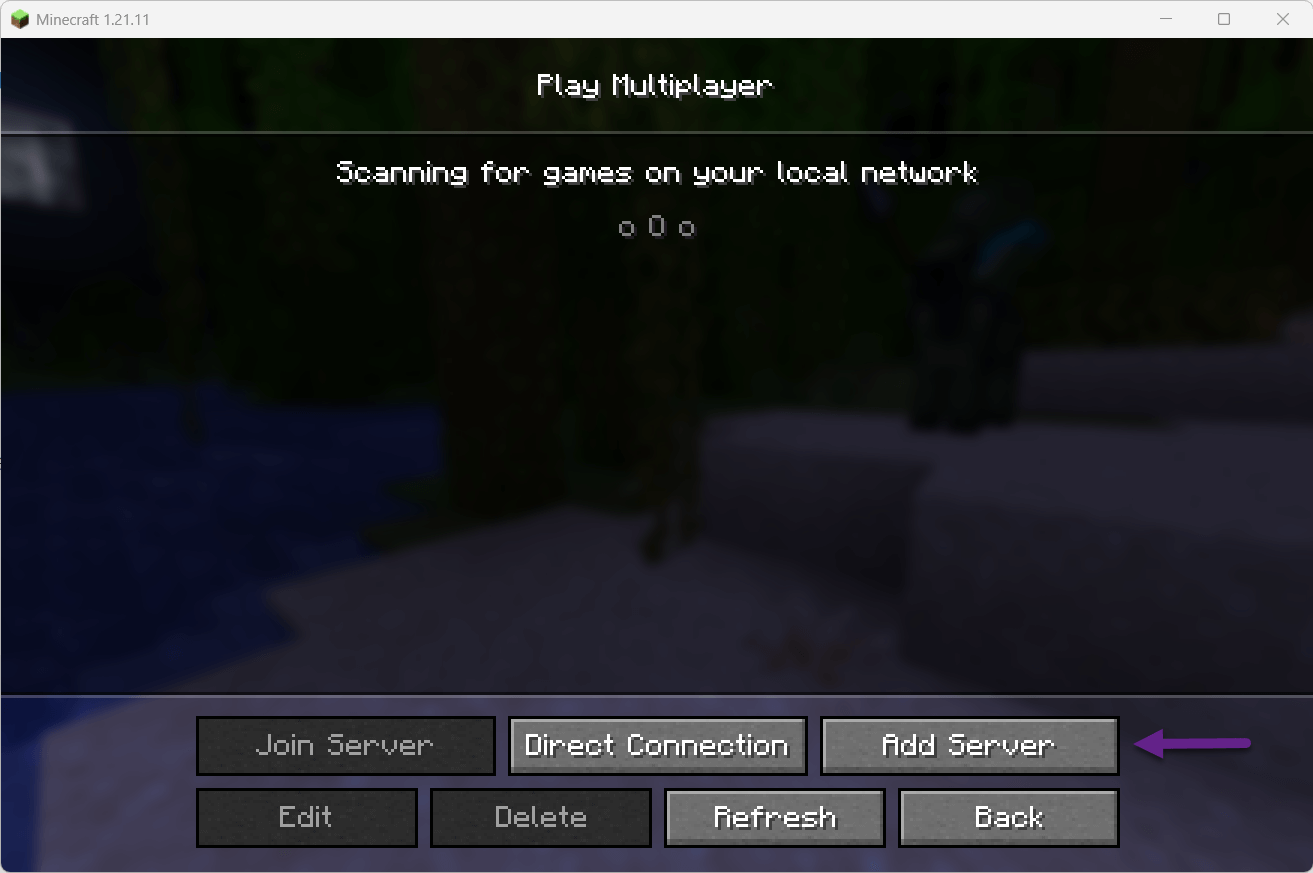
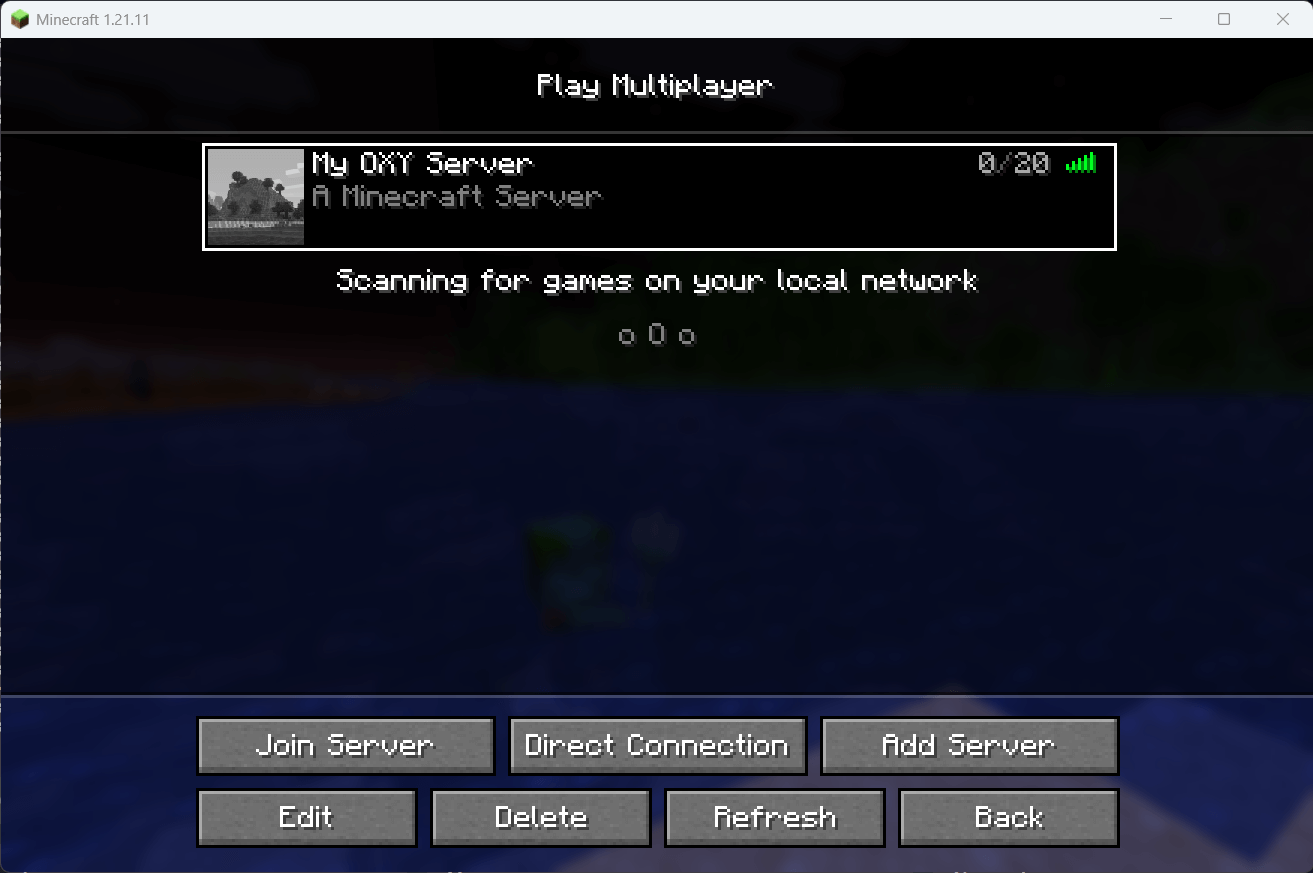
Step 3: Add your server
You will now see the multiplayer screen.
Click Add Server to add your server to the list.
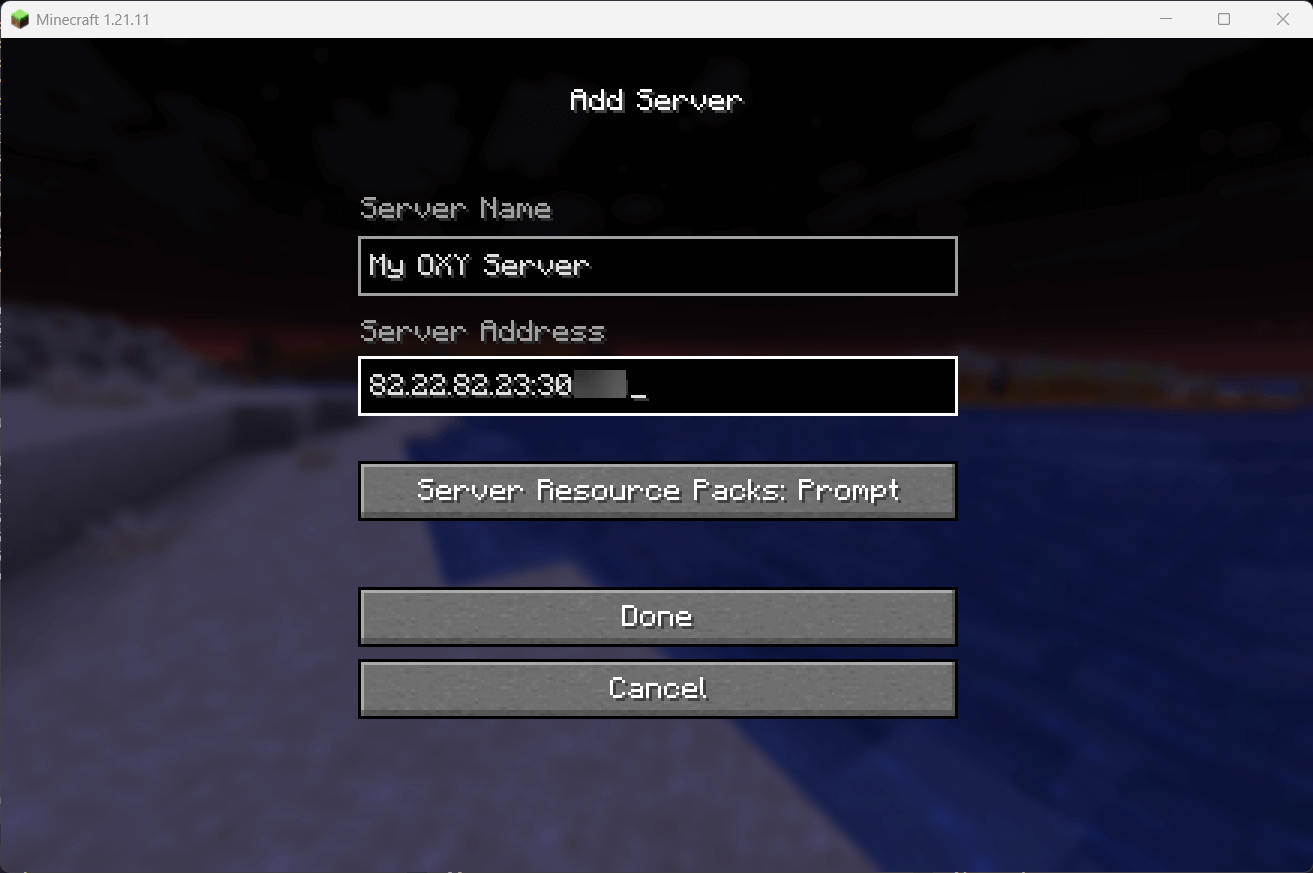
Fill in the details:
- Server Name: any name you like (for example: My OXY Server)
- Server Address: the address you received from OXY.Games
Then click Done.
Examples of Server Address:
play.oxy.games
or
123.45.67.89:25565
💡 Using a clear server name is useful if you add multiple servers later.
Step 4: Join the server 🚀
Your server will now appear in the list.
- Select the server
- Click Join Server
- Wait a few seconds…
- 🎉 You are now connected to your server!
🔧 Common errors and solutions
❌ Outdated server / Outdated client
Meaning:
Your Minecraft version does not match the server version.
Solution:
- Check the active server version via More → Versions
- Select the same version in the launcher
- Restart Minecraft
❌ Connection refused
Meaning:
The server is offline or still starting.
Solution:
- Check in the control panel if the server is online
- Wait 1–2 minutes and try again
❌ Failed to verify username / Invalid session
Meaning:
There is an issue with your Minecraft login session.
Solution:
- Close Minecraft completely
- Restart the launcher
- Log in again with your account
❌ java.net.UnknownHostException
Meaning:
The server address cannot be resolved.
Solution:
- Double-check the spelling of the Server Address
- Try using the IP address
- Wait a few minutes if the domain was recently changed
❓ Frequently Asked Questions (FAQ)
Can I join with Bedrock Edition?
By default, Java Edition servers only work with Java clients.
If your server uses GeyserMC, Bedrock players can also join (usually via port 19132).
Do I need to install mods?
It depends on your server type:
- Vanilla / Paper / Spigot → no mods required
- Forge / Fabric → install the same mods as the server
Why can my friend not join the server?
Possible reasons:
- Whitelist is enabled
- The server is still starting
- The wrong Minecraft version is selected
🚀 Extra tips for the best experience
- 🔌 Use a wired internet connection if possible
- 🔄 Restart your router if you experience lag
- 🎮 Close other downloads while playing
- ⚙️ Consider OptiFine for better performance
⚠️ Using cheats or prohibited mods may result in a ban.
🆘 Need help?
If you’re stuck, we’re happy to help:
- 📚 Documentation: https://docs.oxy.games/en/
- 🎫 Create a support ticket: https://docs.oxy.games/en/ondersteuning/supporttickets-aanmaken
- 🌐 Website: https://oxy.games
✅ Quick checklist
- Correct Minecraft version selected
- Server Address entered correctly
- Server is online
- Stable internet connection
✔️ All set? Enjoy playing on your OXY.Games Minecraft server! 🎉⛏️