Set up Minecraft Bedrock Crossplay with Geyser
With Geyser, players on Minecraft Bedrock Edition (Xbox, PlayStation, Switch, mobile) can join your Minecraft Java server.
This allows friends on different platforms to play together on the same server.
At OXY.Games, we recommend using the Geyser plugin on Purpur for the best compatibility and performance.
🔁 What is Geyser (and Floodgate)?
- Geyser creates a bridge between Minecraft Java Edition and Minecraft Bedrock Edition.
- Floodgate (optional but strongly recommended) allows Bedrock players to join without a Java account.
This guide focuses on Geyser. Floodgate is commonly installed alongside it, but is optional.
✅ Before you start (important)
1) Check your server version
We strongly recommend running your server on Purpur.
Paper or Spigot will also work, but Purpur is generally more stable and faster.
👉 Tutorial:
https://docs.oxy.games/en/games/minecraft/server-setup/versies
2) Request an extra port (required)
Geyser listens on an additional UDP port (default 19132).
This port is not included by default.
👉 First, create a support ticket to request an extra port for your server:
https://docs.oxy.games/en/ondersteuning/supporttickets-aanmaken
Step 1 – Download Geyser (official website)
You can try installing via More → Plugins,
but for the latest and most reliable version, we recommend using the official website:
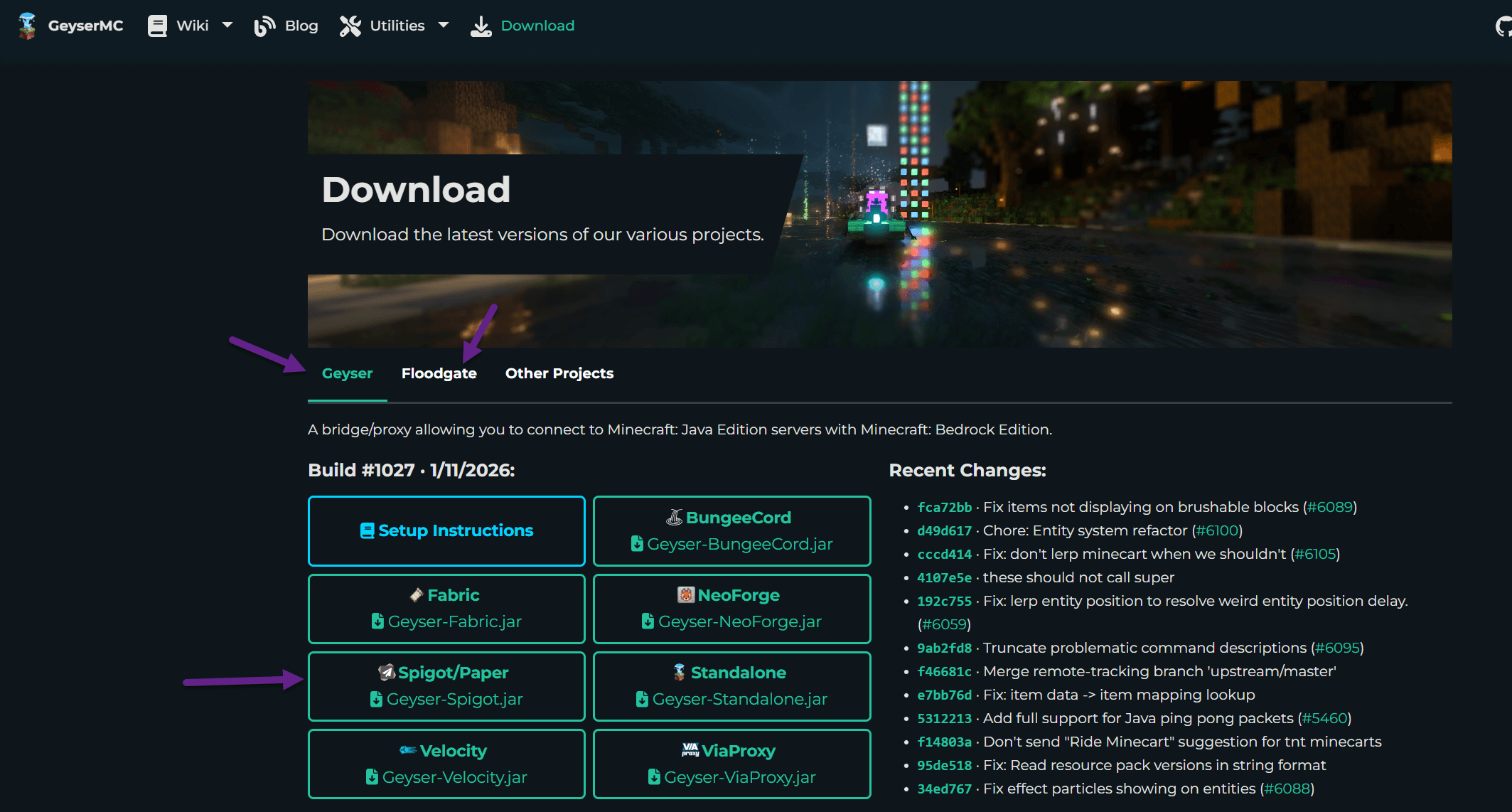
👉 https://geysermc.org/download
- Select the Geyser tab
- Download Spigot/Paper
- (Optional) also download Floodgate
Step 2 – Upload the plugins to your server
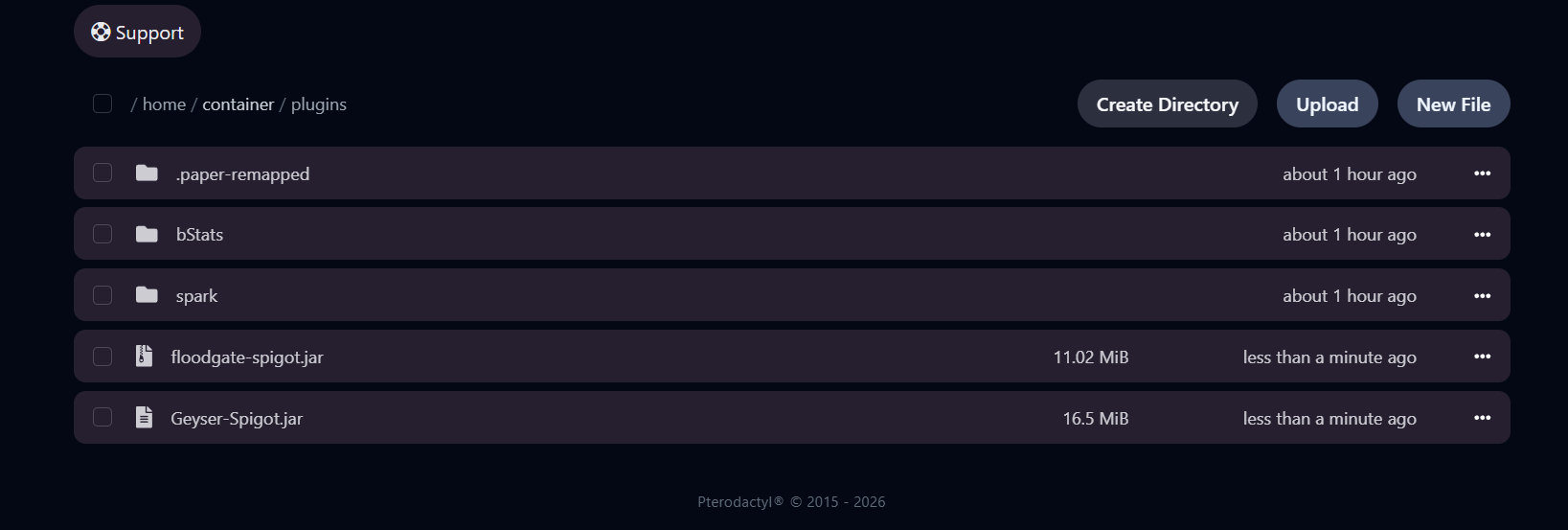
Upload the downloaded .jar files to the plugins directory.
You can do this via:
- File Manager: https://docs.oxy.games/en/gamepaneel/filemanager
- SFTP: https://docs.oxy.games/en/gamepaneel/sftp
Step 3 – Start the server once
Start your server once so Geyser can:
- generate its configuration files
- create the required folders
👉 Tutorial:
https://docs.oxy.games/en/gamepaneel/server-starten-stoppen
Step 4 – Configure Geyser
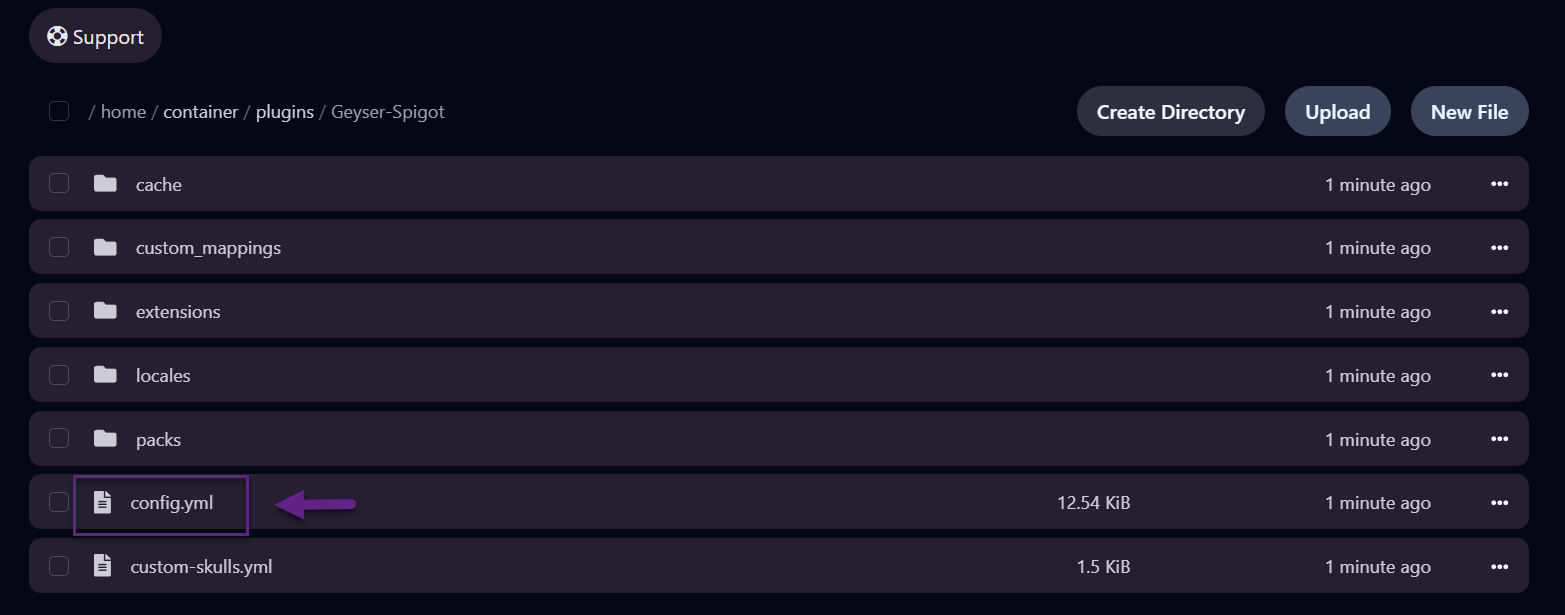
In the File Manager, navigate to plugins/Geyser-Spigot
and open the file config.yml.
🔧 Change the port
In config.yml, look for the Bedrock listener. It should look similar to this:
bedrock: port: 19132
Replace 19132 with the port that our support team added for your server.
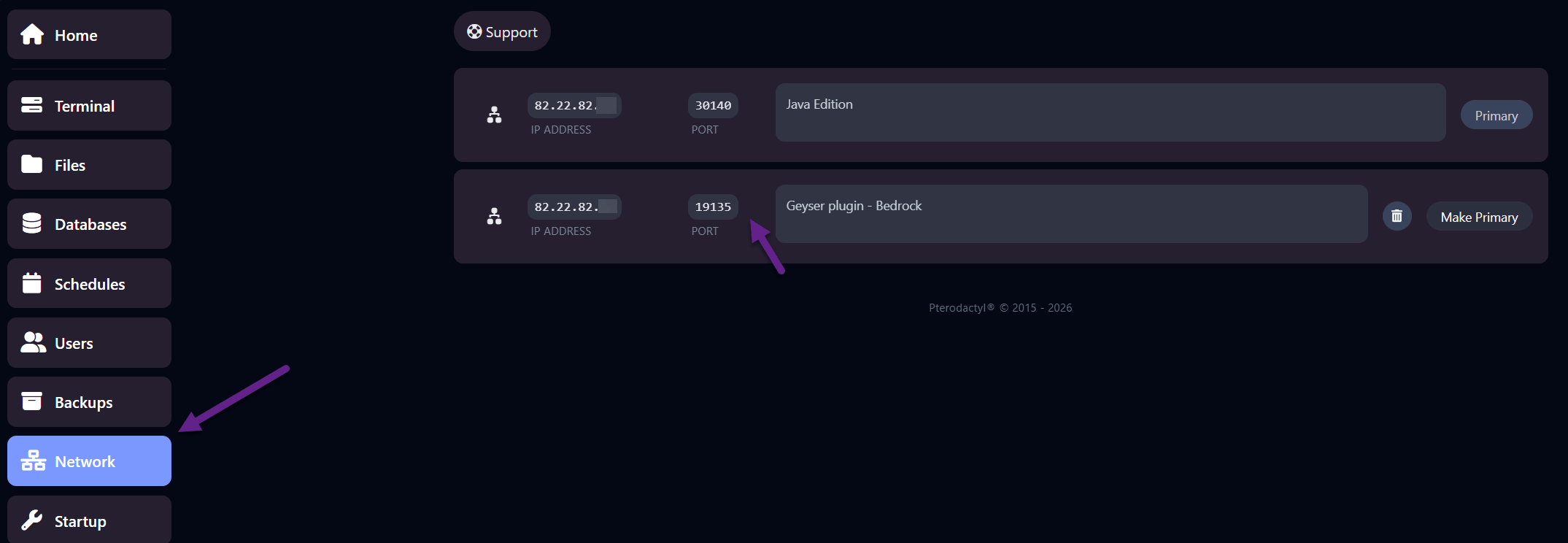
You can also find this port in the Network menu of the control panel.
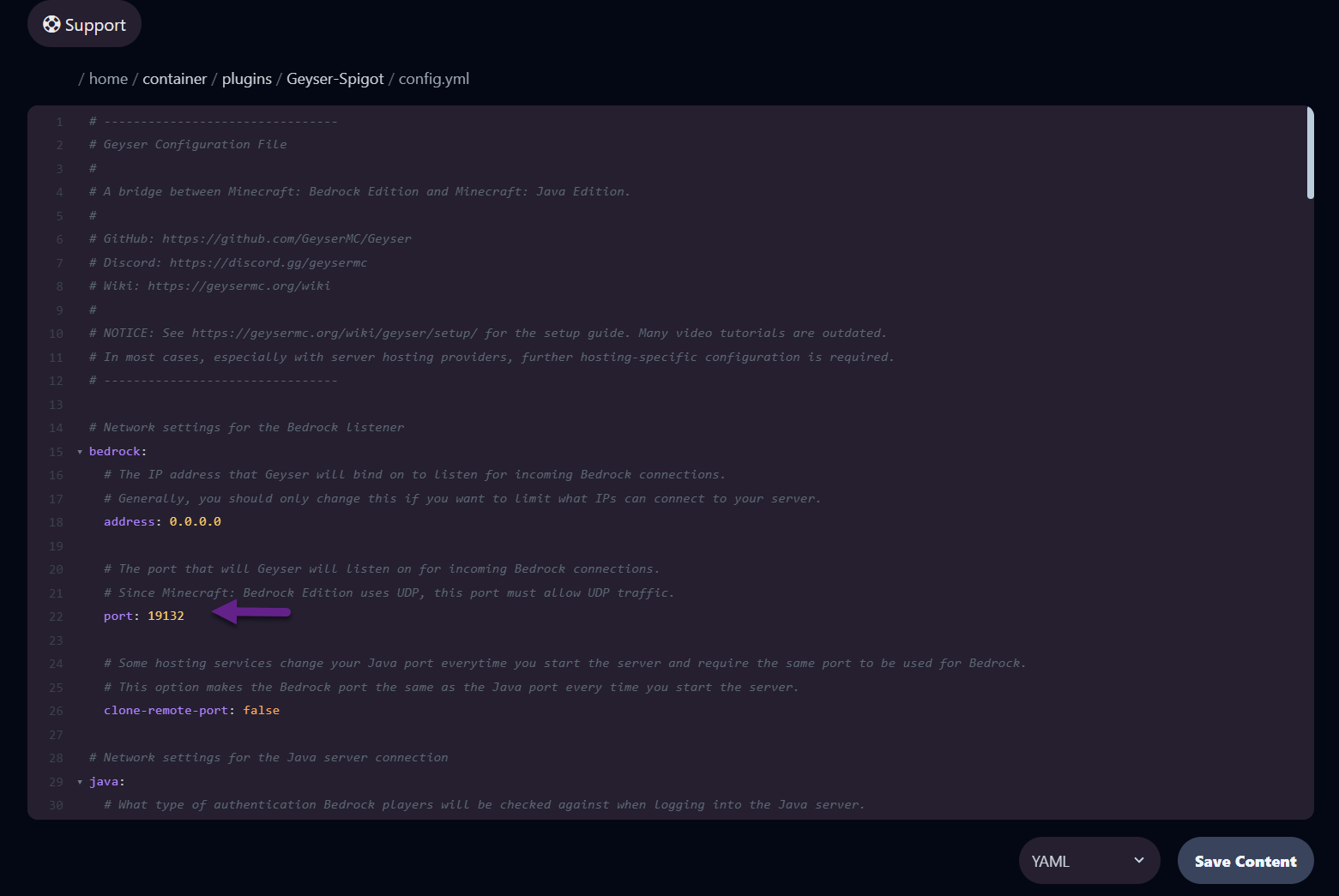
After making the change, click Save Content.
Step 5 – Restart the server
Restart your server.
If everything is configured correctly, you will see logs in the console similar to:
[00:25:54 INFO]: [Geyser-Spigot] Enabling Geyser-Spigot v2.9.2-SNAPSHOT
[00:25:56 INFO]: [spark] Starting background profiler...
[00:25:57 INFO]: [Geyser-Spigot] ******************************************
[00:25:57 INFO]: [Geyser-Spigot]
[00:25:57 INFO]: [Geyser-Spigot] Loading Geyser version 2.9.2-b1027 (git-master-fca72bb)
[00:25:57 INFO]: [Geyser-Spigot]
[00:25:57 INFO]: [Geyser-Spigot] ******************************************
[00:26:01 INFO]: [Geyser-Spigot] Started Geyser on UDP port 19135
[00:26:01 INFO]: [Geyser-Spigot] Done (4.557s)! Run /geyser help for help!

✅ This confirms that Geyser is running correctly and listening on the correct UDP port.
🎮 Done! Bedrock players can now join
From now on, Bedrock players can connect using:
- IP address: the same as your Java server
- Port: the extra Geyser port (e.g.
19135)
Works on:
- Bedrock PC
- Xbox
- PlayStation
- Nintendo Switch
- iOS / Android
ℹ️ Extra tips
- Install Floodgate if you want Bedrock players to join without a Java account
- Always use the latest Geyser version from the official website
- If something doesn’t work, check the console logs first
- Still stuck? Feel free to open a support ticket
✨ Enjoy your Minecraft Bedrock ↔ Java crossplay server at OXY.Games!