

Customer Area Guide
Welcome to the OXY.Games customer area!
Here you can manage your services, payments, profile, and support. This short guide walks you through the most important sections.
🏠 1. Dashboard: your starting point
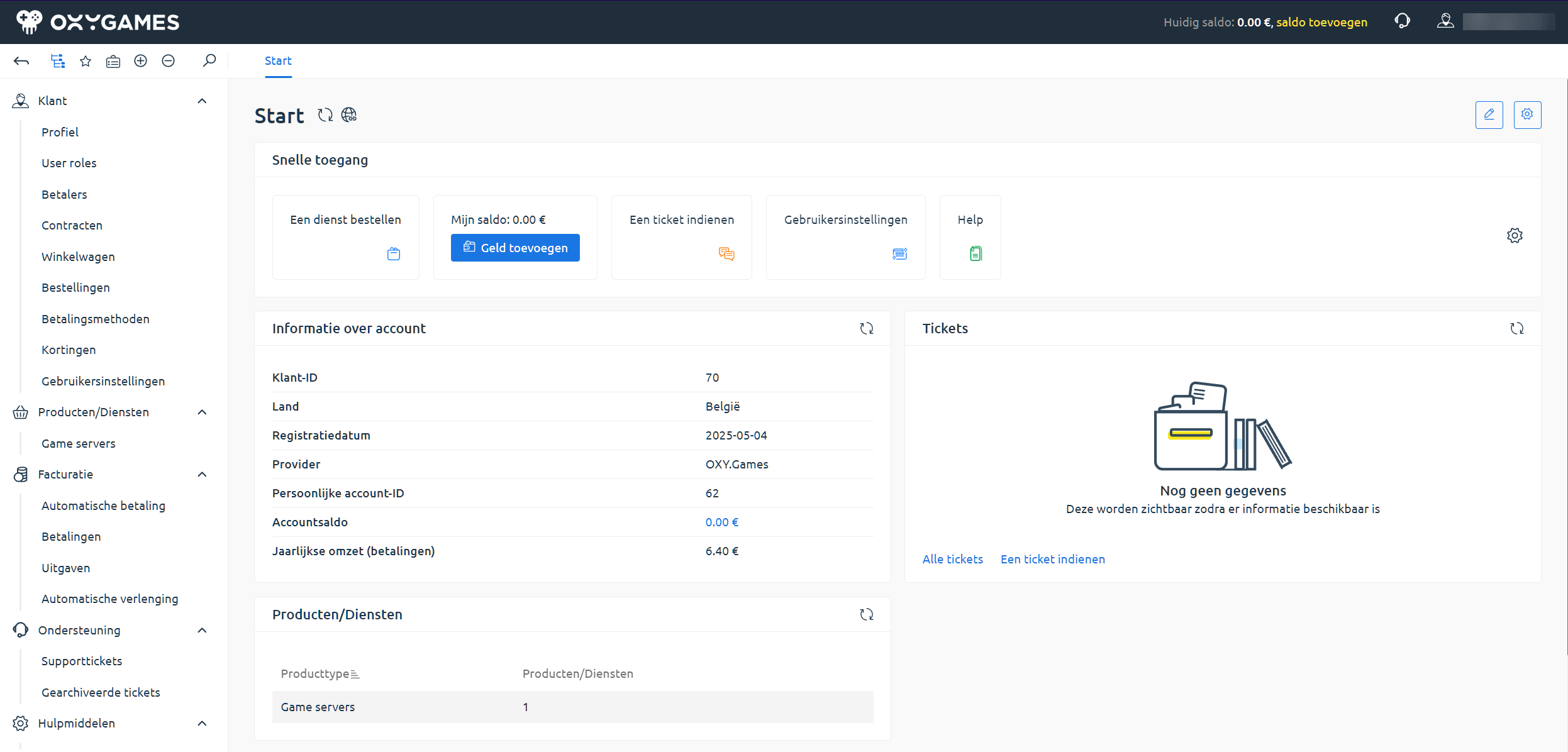
Section titled “🏠 1. Dashboard: your starting point”After logging in, you’ll land on the dashboard. It displays:
- Quick actions like Order a service, Add balance, and Submit ticket
- Your current balance
- Information about your client account (ID, country, registration date)
- Your active services and their status
🎮 2. Manage your game servers
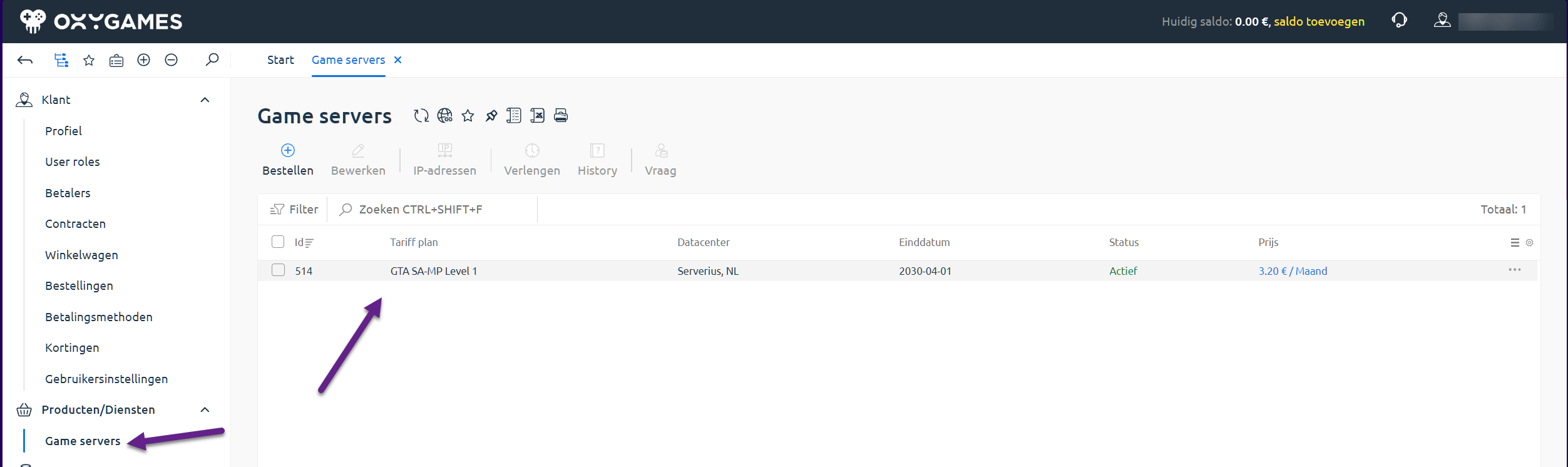
Section titled “🎮 2. Manage your game servers”Go to Products/Services > Game Servers to view your active servers.
Here, you can:
- Check the status of your server (Active, Inactive, Expired)
- View your plan and datacenter
- Perform additional actions from the top menu:
- Upgrade/Downgrade
- Renew
- View IP addresses
- Open panel
- View instructions
💳 3. Billing overview
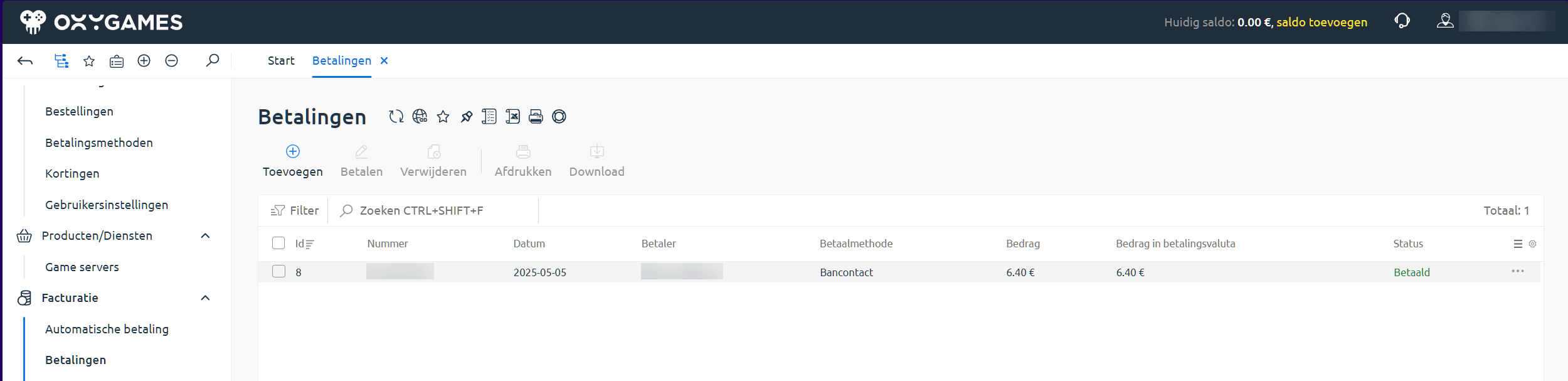
Section titled “💳 3. Billing overview”In the Billing section, you can manage everything related to payments:
📄 Payments
Section titled “📄 Payments”- View your past payments
- Check the payment method and status
- Add balance via the Add button
🔁 Auto-payments & renewals
Section titled “🔁 Auto-payments & renewals”- Set up automatic payments (only available with PayPal)
- Enable auto-renewal for your servers via the product page
📌 See separate guides:
- Enable automatic payment
- Enable automatic renewal
🎫 4. Requesting support
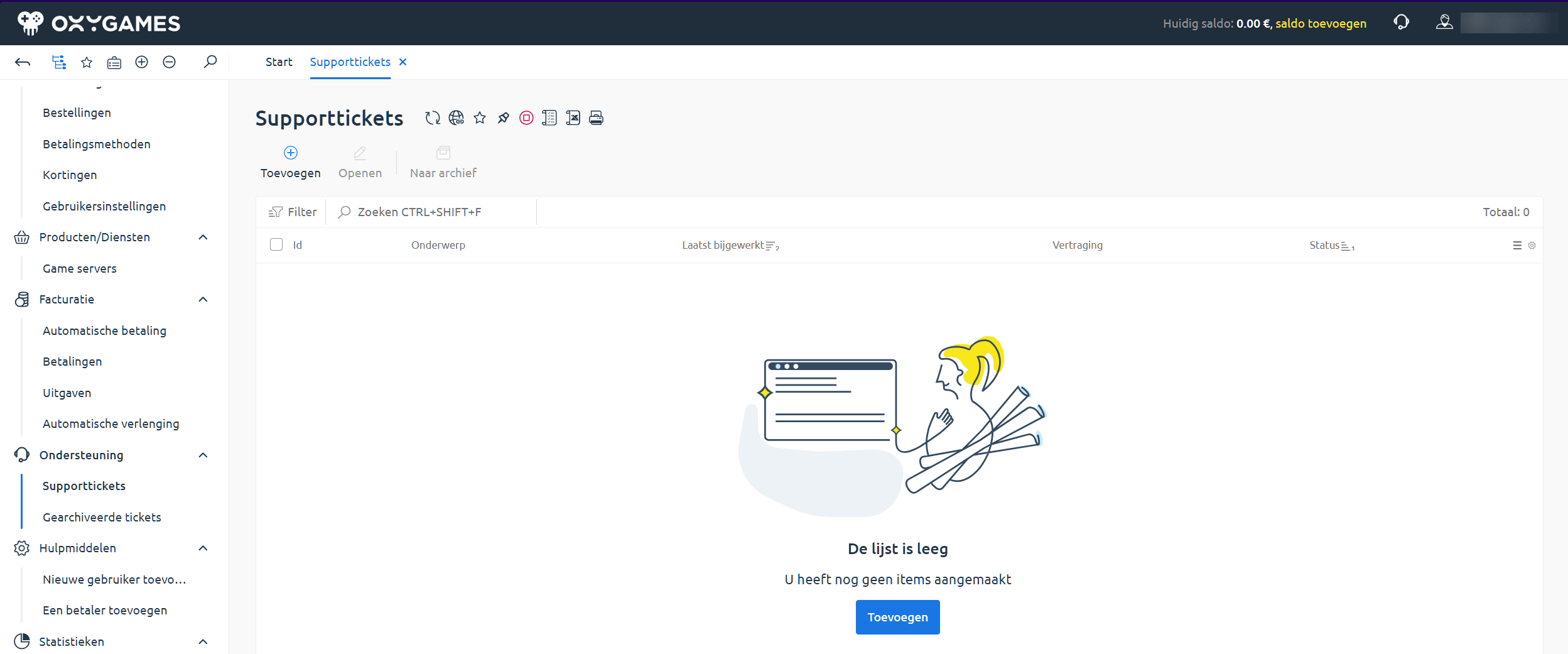
Section titled “🎫 4. Requesting support”Under Support > Support Tickets, you can ask for help or report issues.
You’ll see:
- An overview of your tickets
- Their status and last updates
- A Submit button to create a new ticket
📌 See separate guide: Submit a support ticket
⚙️ 5. Extra settings: profile & balance
Section titled “⚙️ 5. Extra settings: profile & balance”In the top right:
- Click your email address to manage profile settings (such as language and contact info)
- Quickly add balance using the “Add Balance” link
📚 More tutorials
Section titled “📚 More tutorials”Other helpful articles:
- Add balance to your account
- Set up automatic payments
- Ask for help via the ticket system
Still have questions? We’re happy to help via the customer area or by email at [email protected].
🎮 Good luck!
— The OXY.Games Team