

How to order a server
From plan to a running server takes a few minutes. The screenshots show a Minecraft order; every other game works the same way.
- Pick a plan on oxy.games
- Create your account
- Add a payer and pay
- Get your login and start the server
-
Choose a plan
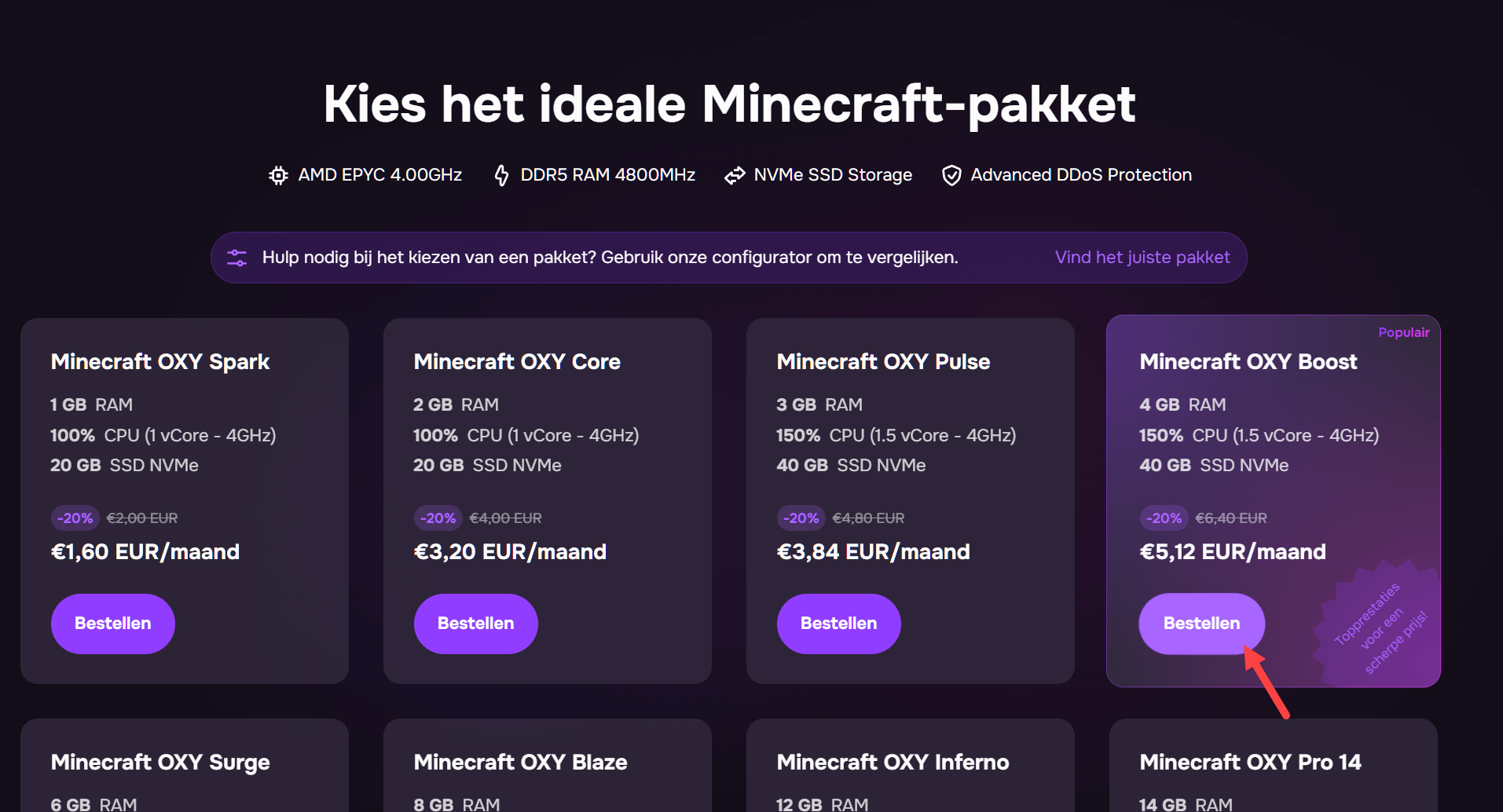
Section titled “Choose a plan”Go to oxy.games, open your game and pick the plan. Not sure about RAM? The game page lists what each tier is good for; you can upgrade later without losing anything.
-
Create your account
Section titled “Create your account”New here? Enter your name, email and a password. Use an email you actually read: activation, login details, renewal reminders and ticket replies all go there.
-
Check your cart
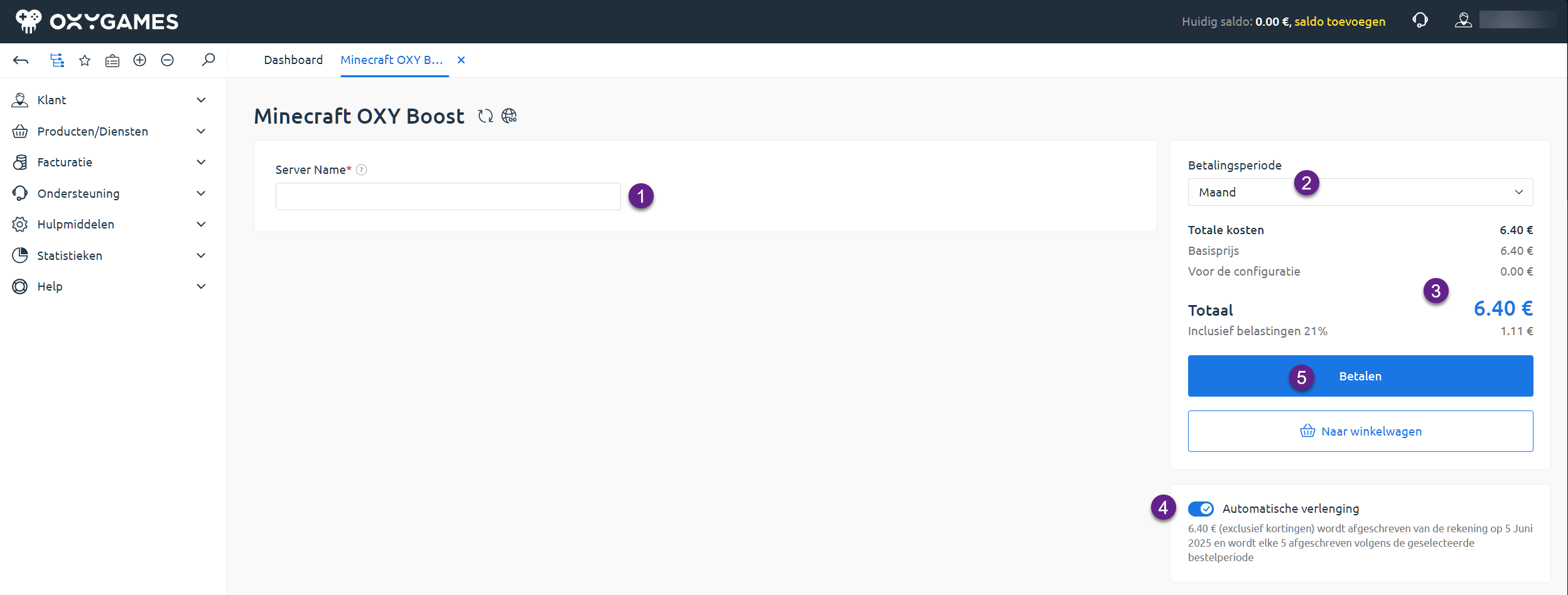
Section titled “Check your cart”Give your server a name, choose the period (1 month, 3, 6 or 12 months, or the trial if one is offered) and decide on automatic renewal. Click Pay.
-
Add a payer
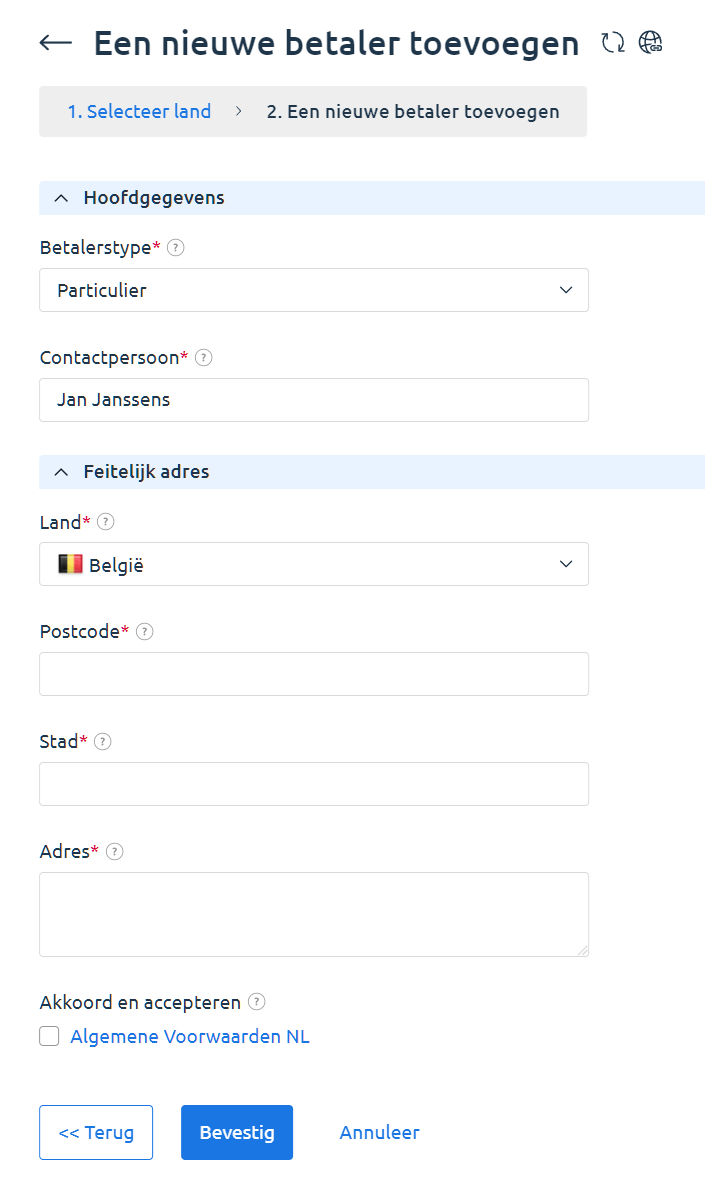
Section titled “Add a payer”Click Add new, choose your country and whether you order as a private person or a company, then enter your address. OXY is a registered Belgian company, so an invoice needs a billing address; it isn’t checked against anything else.
-
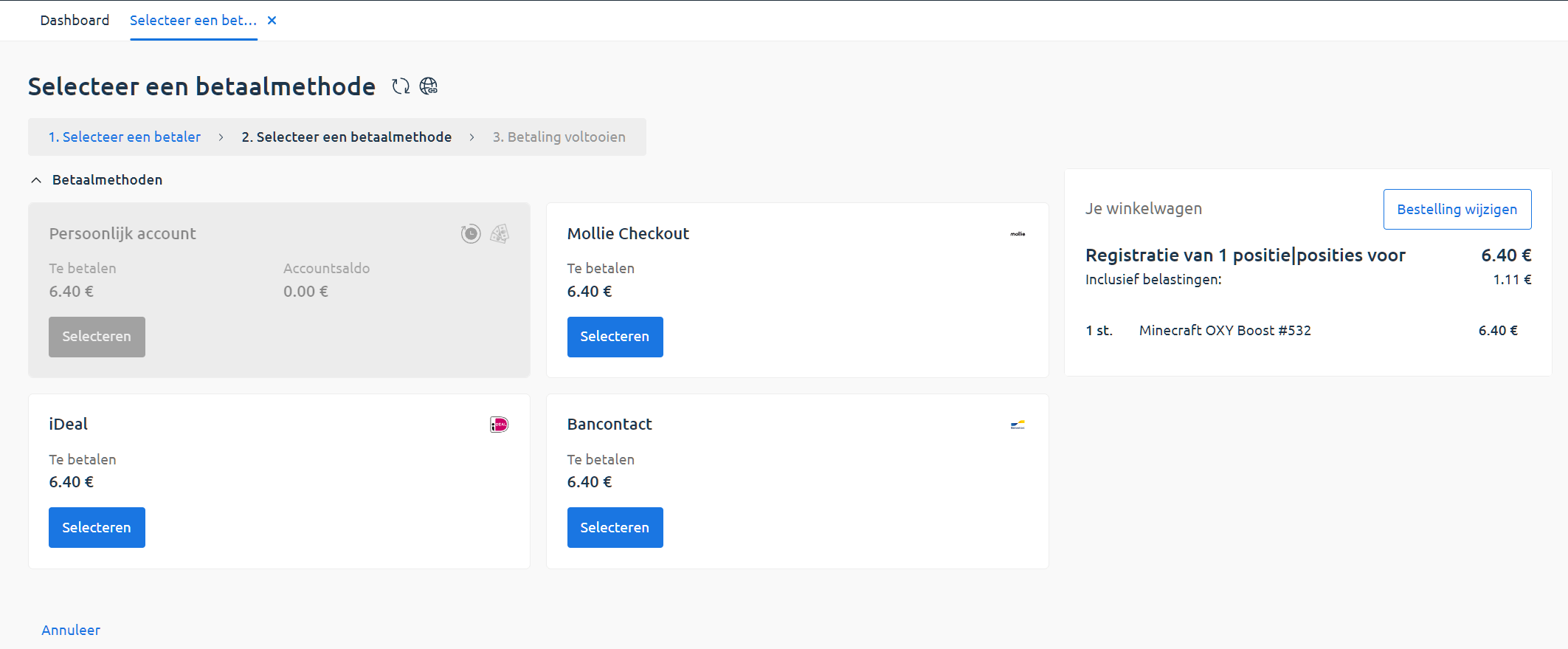
Select the payer, pick Bancontact, iDEAL, PayPal or card, review the summary and click Place order. You’re sent to the payment page and back when it’s done.
-
Get your login
Section titled “Get your login”After payment the status reads Paid and the server is created within a few minutes. In the left menu go to Products → Game servers, select the server and click Instructions: server address, panel link, username and temporary password. The same details arrive by email.
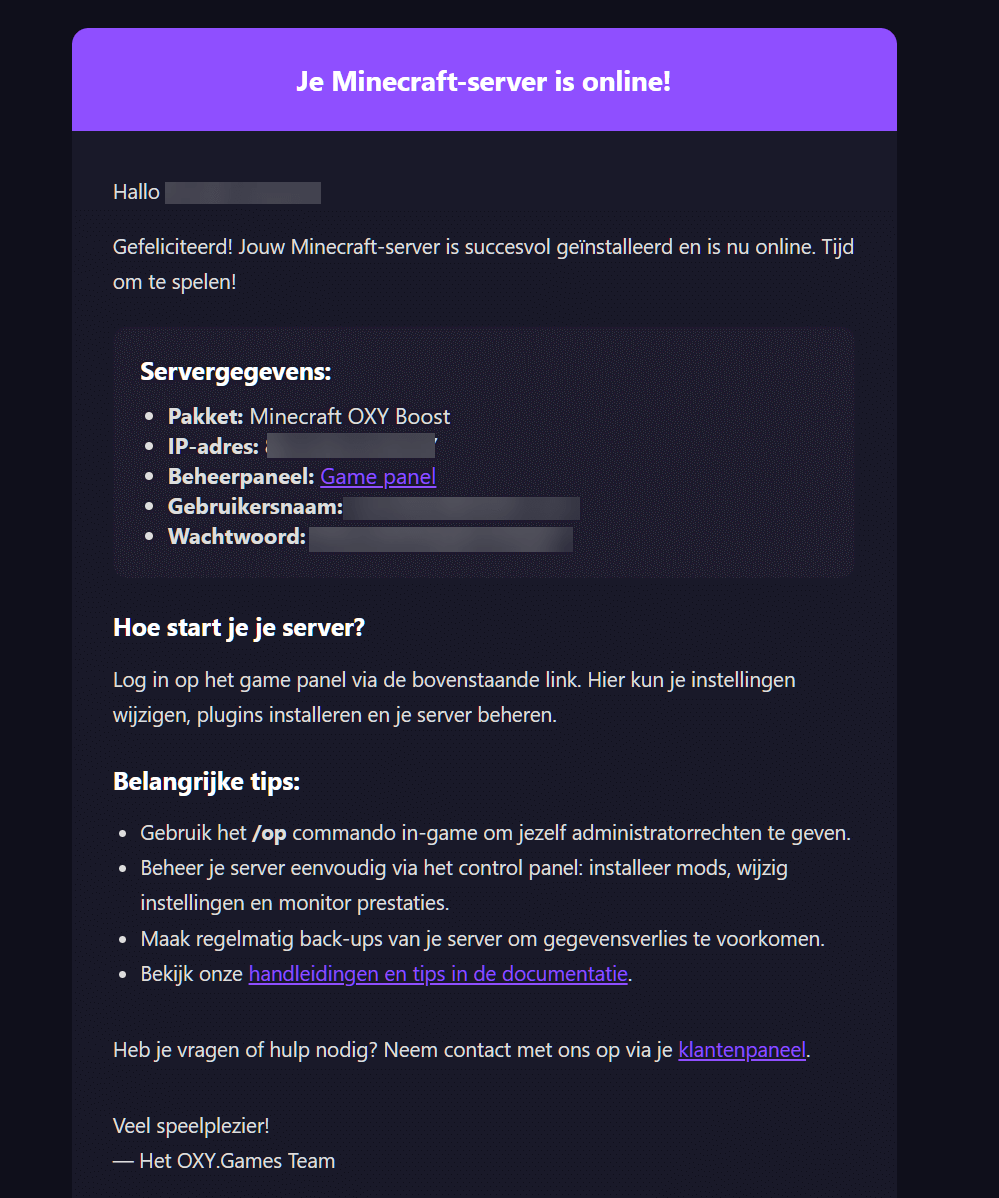
-
Start the server
Section titled “Start the server”Click Go to panel, then Start in the console. See Log in to the game panel and How to join your Minecraft server.
Extra tips
Section titled “Extra tips”- Automatic renewal can be switched on or off any time under the server’s settings in the client area, see Upgrade or renew.
- Paid but no email? Check spam, then open Game servers → Instructions in the client area.
- Company order? Pick “company” as payer type and add your VAT number for a correct invoice.