

Install a modpack
A modpack bundles dozens to hundreds of mods, preconfigured and ready to play. The game panel downloads and unpacks it for you; your players install the same pack in their launcher.
- Pick a modpack and note its loader
- Install it from the panel
- Set the matching loader and version
- Start and check the console
Before you start
Section titled “Before you start”Install the modpack
Section titled “Install the modpack”-
Open the Modpacks menu
Section titled “Open the Modpacks menu”In the panel’s left menu go to More → Modpacks.
-
Choose a provider and find your pack
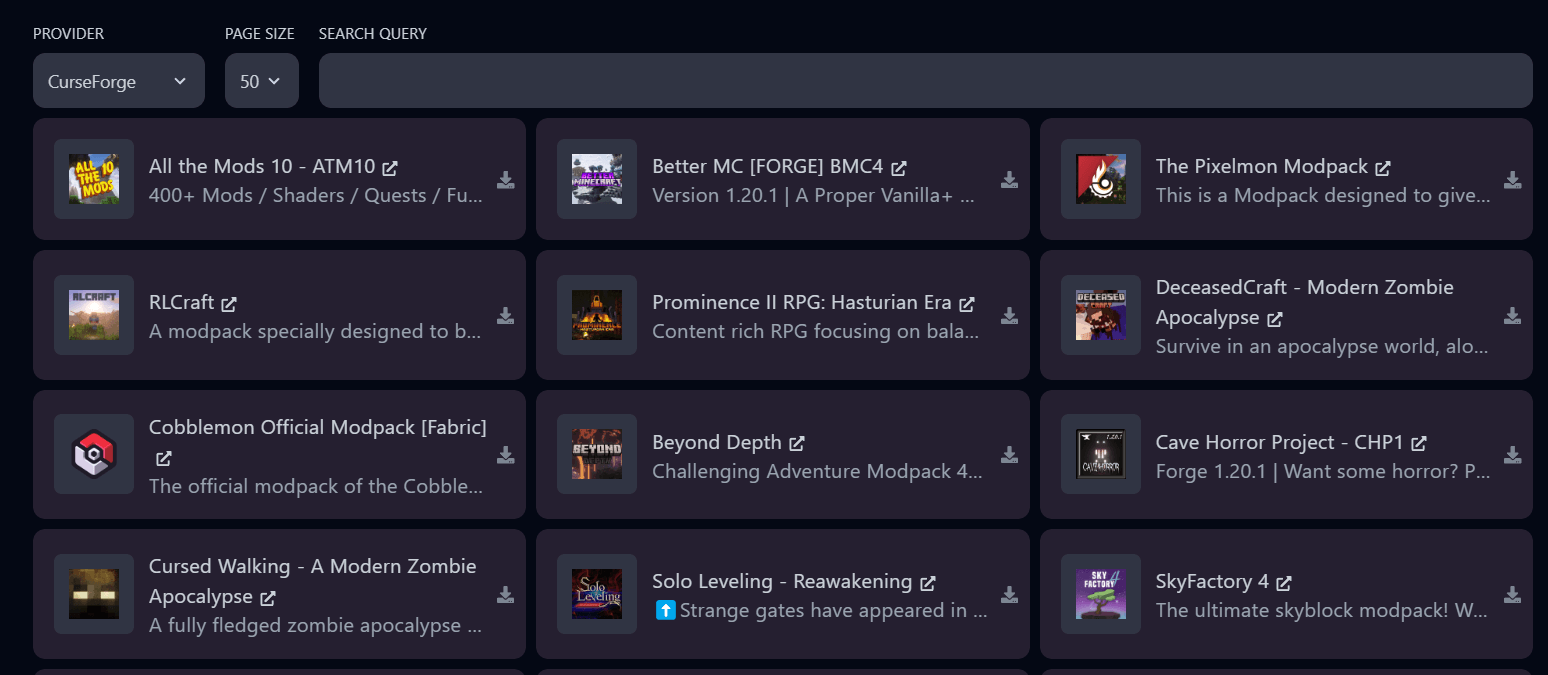
Section titled “Choose a provider and find your pack”Pick CurseForge (largest), Modrinth (lightweight, open source), ATLauncher or Technic, then search for the pack. In this example we install Better MC [NEOFORGE]. Click the download icon.
-
Pick the version and install
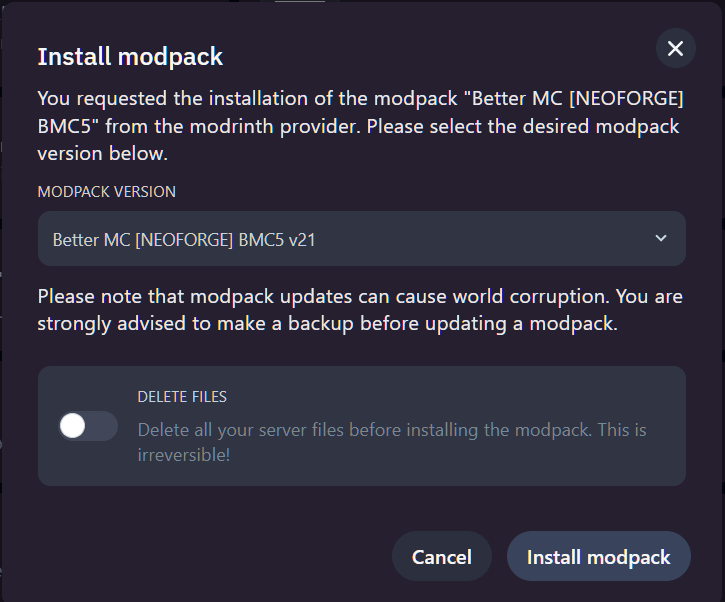
Section titled “Pick the version and install”Select the pack version. Tick delete existing server files if you start fresh; it avoids conflicts with earlier mods or plugins. Then click Install modpack.
-
Wait for the confirmation email
Section titled “Wait for the confirmation email”The panel starts the download in the background and emails you when it is done. Files → mods then contains the pack’s mods.
-
Set the loader and version
Section titled “Set the loader and version”Go to More → Versions, pick the loader the pack needs (Forge, Fabric or NeoForge) and the exact Minecraft version from the pack’s page. Install it without wiping files.
-
Start and check the console
Section titled “Start and check the console”Click Start. The first start takes a few minutes while the mods initialize. The console ends with
Donewhen the server is ready.
Extra tips
Section titled “Extra tips”- Server stuck starting or out of memory? The pack needs more RAM than your plan has. Upgrade, or pick a lighter pack.
- Crash on startup usually means loader or version mismatch. Compare the pack page with More → Versions.
- Updating a pack: make a backup, then reinstall the newer version without deleting files.