

Changing your Minecraft server version
Want a newer Minecraft version, or switch from Vanilla to Paper for plugins or to Forge for mods? The panel installs the server software for you.
What you'll do
- Pick the server software
- Pick the Minecraft version
- Install, with or without a wipe
- Start the server
Which software?
Section titled “Which software?”| Software | Best for | Notes |
|---|---|---|
| Purpur | Survival, minigames, plugins | Fastest in our tests, our recommendation. |
| Paper | General use, plugins | Stable and well supported. |
| Vanilla | Pure Minecraft | No plugins or mods. |
| Forge / NeoForge | Modpacks | Needed for most CurseForge packs. |
| Fabric | Lightweight mods | Needed for Fabric packs and mods. |
Change the version
Section titled “Change the version”-
Open the Versions menu
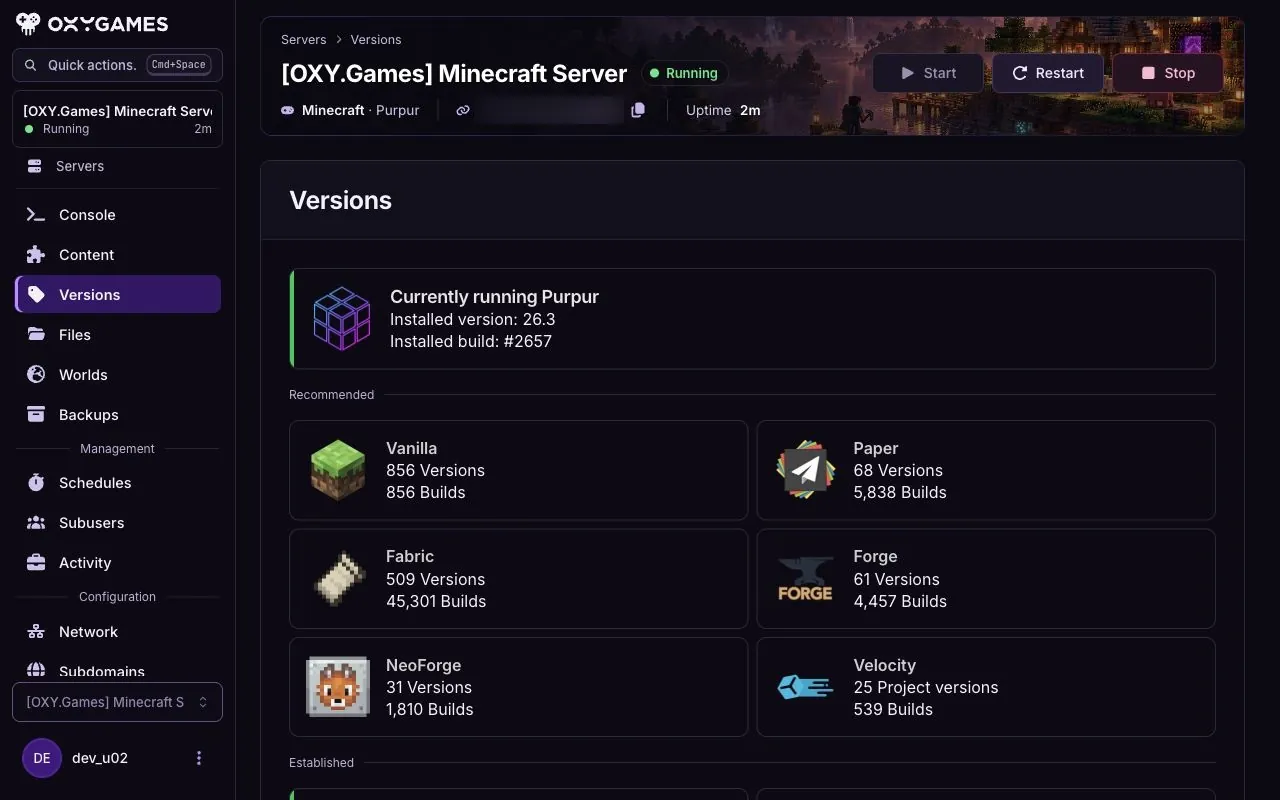
Section titled “Open the Versions menu”In the panel’s left menu go to Versions.
-
Choose the server software
Section titled “Choose the server software”Click the software you want, for example Paper.
-
Choose the Minecraft version and build
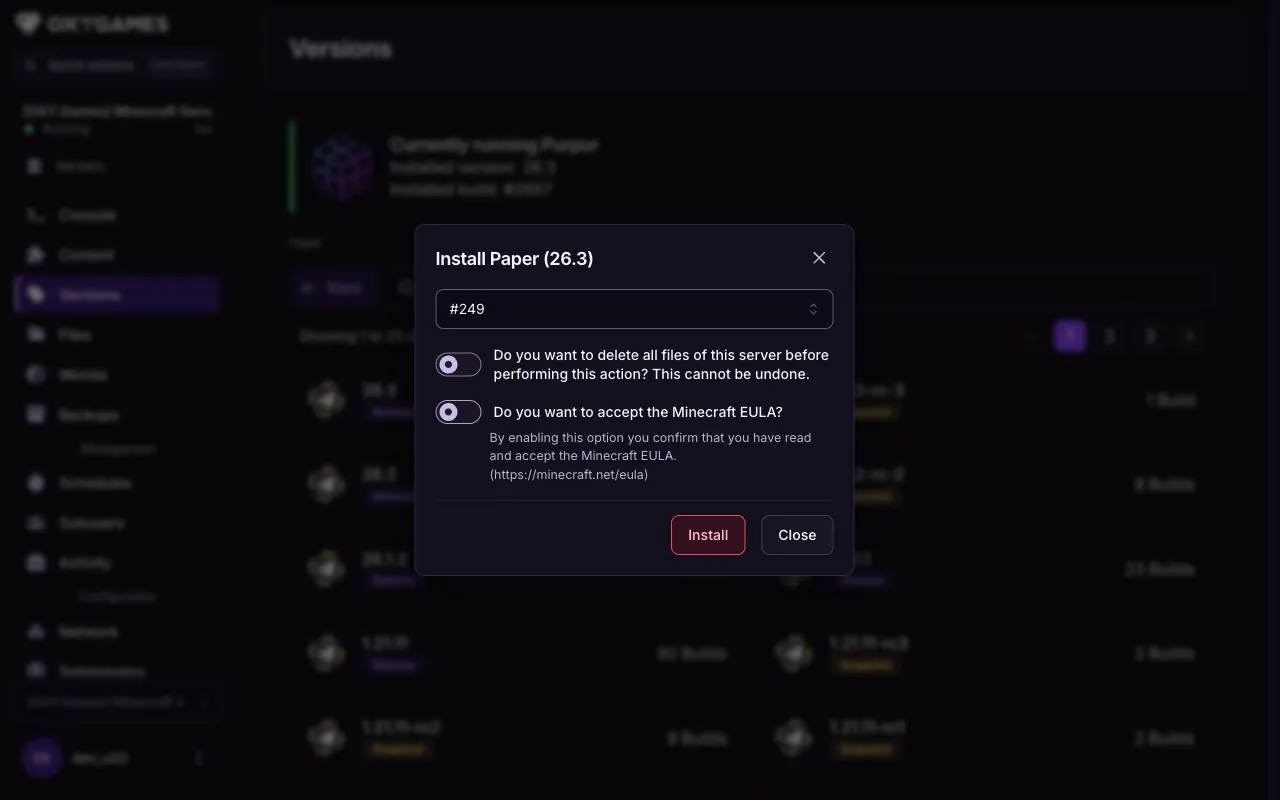
Section titled “Choose the Minecraft version and build”Pick the version, for example 26.3, then the build. Builds are small fixes; take the highest one unless a plugin asks for a specific build.
-
Install
Section titled “Install”Decide about Delete all files, then click Install.
-
Start the server
Section titled “Start the server”Click Start. The new
server.jaris in place; the first start on a new version converts your world, which can take a minute.
Extra tips
Section titled “Extra tips”- Downgrading a world to an older version is not supported by Minecraft. Restore a backup from before the upgrade instead.
- Plugins after an upgrade: check that each plugin supports the new version; outdated plugins can stop the server from starting.
- Switching Paper to Forge or back: mods and plugins are not interchangeable, so start with a wipe or a fresh folder.