

How to join your Minecraft server
Your server is running. This guide gets you from the Minecraft launcher into your own world, and shows what to do when the connection fails.
- Find your server address and version
- Start Minecraft on the matching version
- Add the server in Multiplayer
- Join and invite your friends
What you need
Section titled “What you need”- Minecraft Java Edition on your PC or Mac. Bedrock players need Geyser.
- Your server address, for example
play.yourserver.comor123.45.67.89:25565. It is in your activation email and in the game panel. - The Minecraft version your server runs. Check it in the panel under More → Versions. Want another one? See Changing your Minecraft server version.
Join your server
Section titled “Join your server”-
Start Minecraft on the right version
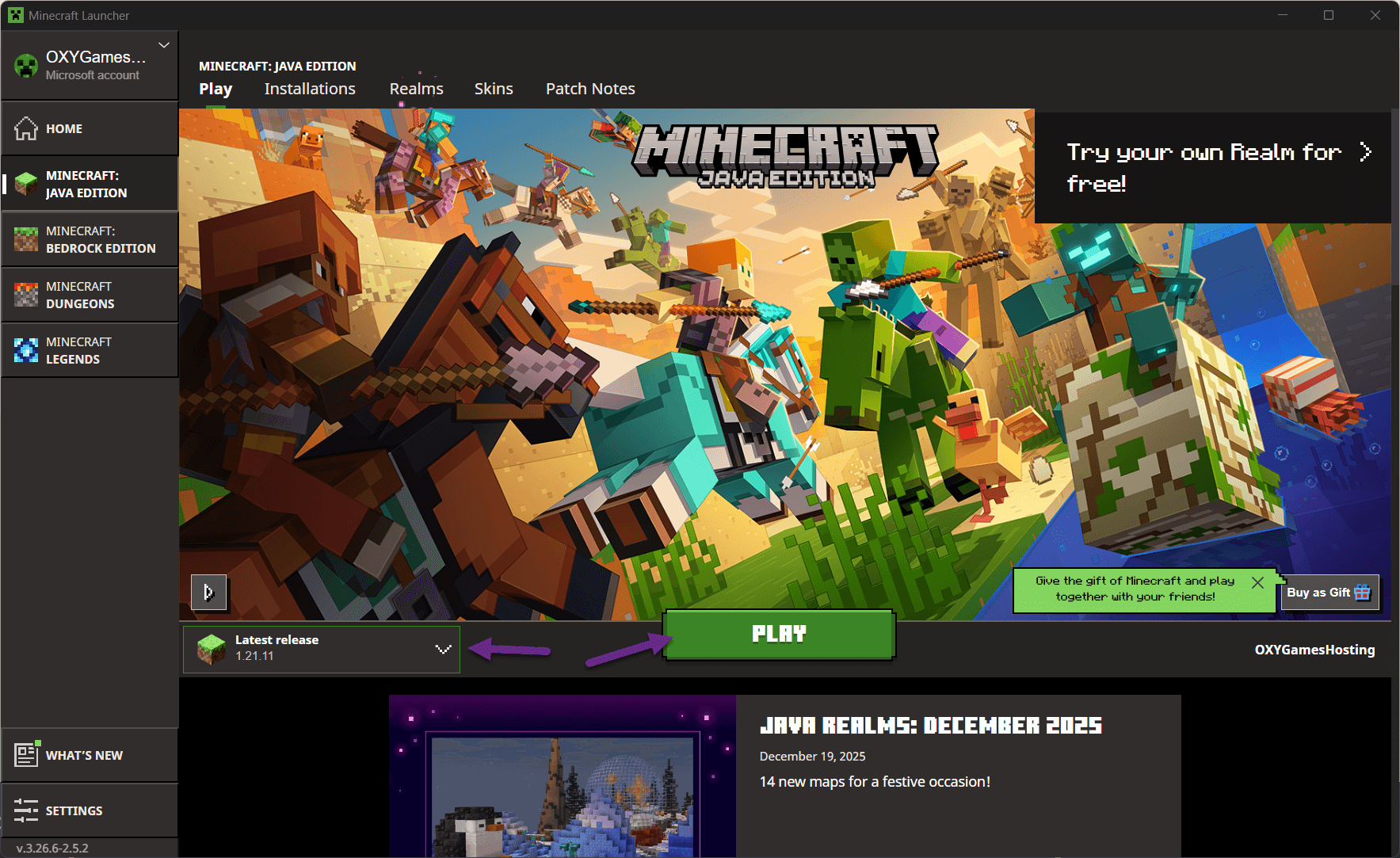
Section titled “Start Minecraft on the right version”Open the Minecraft Launcher and pick the version that matches your server next to the Play button. Then click Play.
-
Open Multiplayer
Section titled “Open Multiplayer”In the main menu click Multiplayer.
-
Add your server
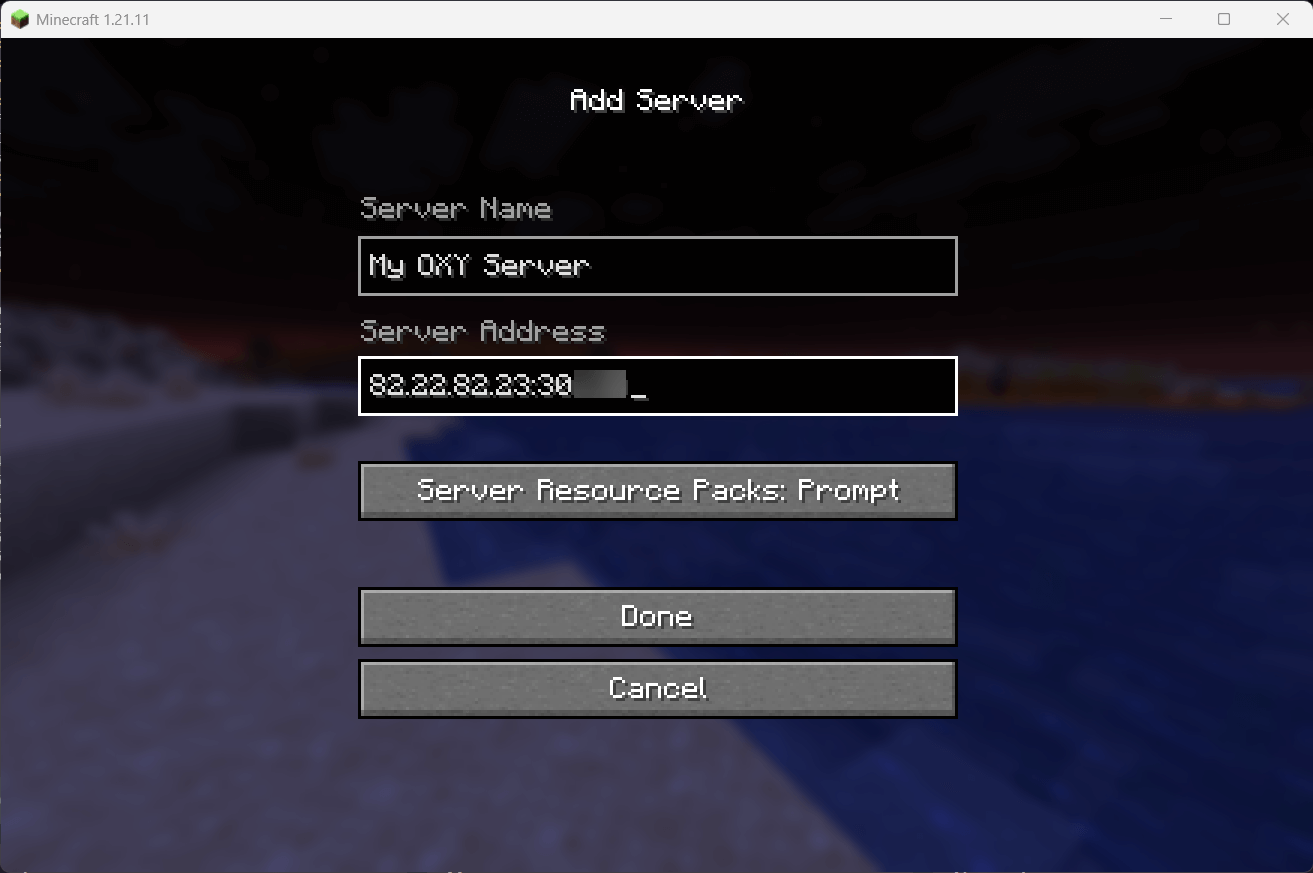
Section titled “Add your server”Click Add Server and fill in:
- Server Name: anything you like, for example My OXY server.
- Server Address: the address from OXY.Games.
Click Done.
-
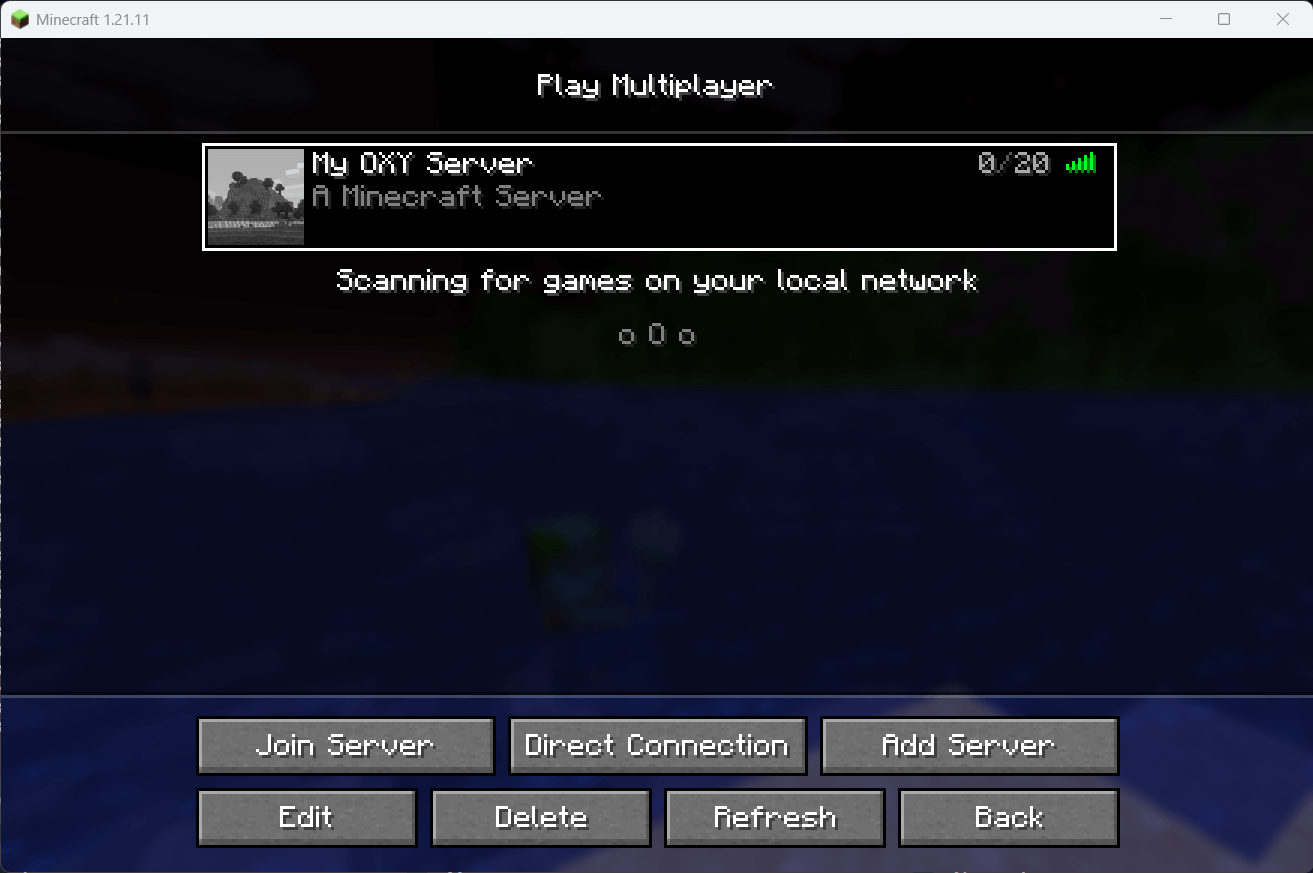
Your server now appears in the list with green connection bars. Select it and click Join Server. Share the same address with your friends so they can join too.
Common errors and fixes
Section titled “Common errors and fixes”Outdated server / Outdated client
Section titled “Outdated server / Outdated client”Your Minecraft version doesn’t match the server version. Check the active version under More → Versions, pick the same one in the launcher, and restart Minecraft.
Connection refused
Section titled “Connection refused”The server is offline or still starting. Check the panel: wait until the status is online, then try again after a minute.
Failed to verify username / Invalid session
Section titled “Failed to verify username / Invalid session”Your Minecraft login session expired. Close Minecraft completely, restart the launcher and log in again.
java.net.UnknownHostException
Section titled “java.net.UnknownHostException”The address can’t be found. Check the spelling, or use the IP address instead of the domain. A recently changed domain can take a few minutes to update.
Can I join with Bedrock Edition?
Only if the server runs Geyser. Follow Set up Bedrock crossplay with Geyser; Bedrock players then connect on the extra UDP port.
Do I need to install mods?
- Vanilla, Paper, Purpur or Spigot: no, plugins run server-side.
- Forge, Fabric or NeoForge: yes, install the same mods as the server in your launcher.
Extra tips
Section titled “Extra tips”- A wired connection is more stable than Wi-Fi.
- Close downloads and streams while playing if you see lag.
- Low FPS? Sodium (Fabric) or OptiFine help on the client side. Server lag is a different thing, see Optimize your Minecraft server performance.