

Set up Bedrock crossplay with Geyser
With Geyser, players on Minecraft Bedrock Edition (Xbox, PlayStation, Switch, mobile) can join your Java server. Friends on different platforms play together on one world.
- Check your server version
- Request an extra UDP port
- Upload Geyser (and Floodgate)
- Set the Bedrock port and restart
What is Geyser (and Floodgate)?
Section titled “What is Geyser (and Floodgate)?”- Geyser translates between Java Edition and Bedrock Edition so both can be on the same server.
- Floodgate (optional, recommended) lets Bedrock players join without a Java account.
Before you start
Section titled “Before you start”1) Check your server version
Section titled “1) Check your server version”Open the game panel, go to Startup and note the server type and version. Geyser is a plugin, so you need Paper or Purpur, not vanilla. Wrong type or version? See Changing your Minecraft server version.
2) Request an extra UDP port (required)
Section titled “2) Request an extra UDP port (required)”Bedrock connects over UDP on its own port. Your server comes with one Java (TCP) port, so you need a second one. Open a ticket from your client area and ask for it:
Hi! Could you add an extra UDP port to my Minecraft serverfor Geyser (Bedrock crossplay)? Server: [YOUR SERVER NAME]You’ll get the port number back in the ticket. It also shows up under Network in the game panel. Keep it handy for step 4.
Install Geyser
Section titled “Install Geyser”-
Download Geyser (and Floodgate)
Section titled “Download Geyser (and Floodgate)”Grab Geyser-Spigot from the official download page: geysermc.org/download. Pick the Geyser tab, then Spigot/Paper. If you want Floodgate, download Floodgate-Spigot from the same place.
-
Upload the plugins to your server
Section titled “Upload the plugins to your server”In the game panel open Files, go into the
pluginsfolder and upload both.jarfiles. SFTP works too if you prefer.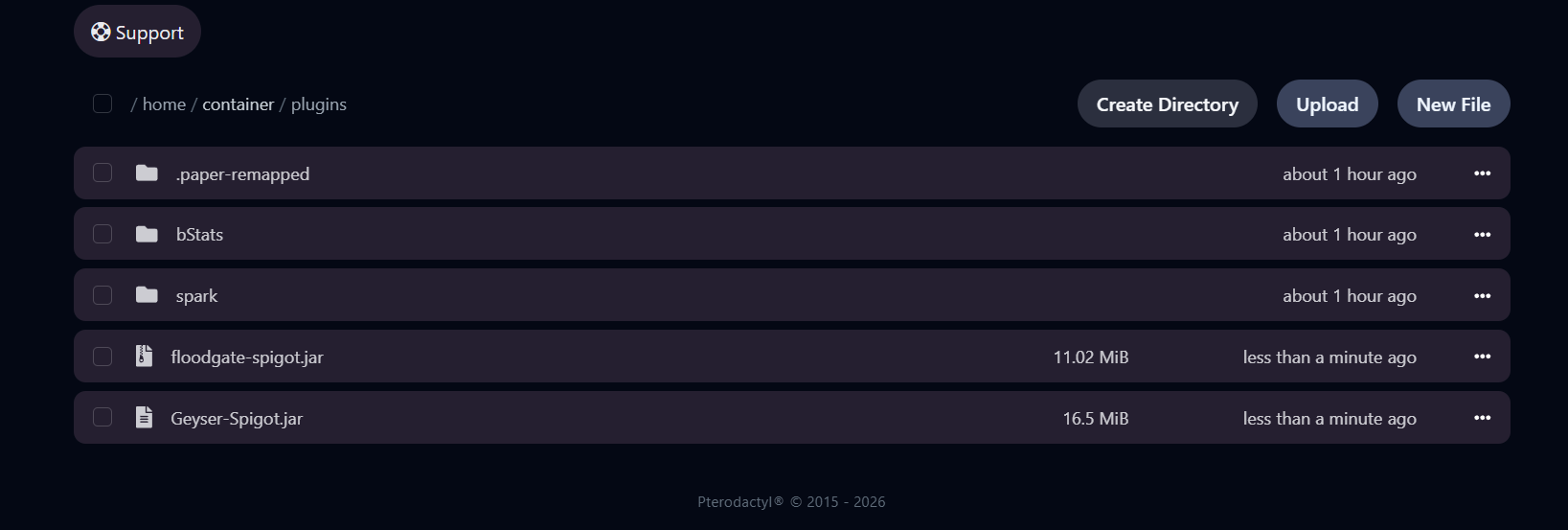
-
Start the server once
Section titled “Start the server once”Press Start. Geyser creates its config folder on first run. Wait until the console shows
Done!, then Stop the server again. -
Set the Bedrock port
Section titled “Set the Bedrock port”Open
plugins/Geyser-Spigot/config.ymlin the file editor and change the port underbedrock:to the extra port from your ticket.plugins/Geyser-Spigot/config.yml bedrock:# The IP address that will listen for connectionsaddress: 0.0.0.0port: 19132 # change this to the extra port from your ticketclone-remote-port: falseClick Save Content.
-
Restart the server
Section titled “Restart the server”Press Restart. In the console you should see Geyser report that it started on your UDP port:
[Geyser-Spigot] Loading Geyser version 2.9.2-b1027[Geyser-Spigot] Started Geyser on UDP port 19135[Geyser-Spigot] Done (4.557s)! Run /geyser help for help!
Extra tips
Section titled “Extra tips”- Floodgate prefix: Bedrock players show up with a
.in front of their name. Change it underusername-prefixin Floodgate’s config. - Updates: after a Minecraft update, update Geyser too. Newer builds are available via the version picker in the panel.
- Console errors? Check the console log first, and send us the last 20 lines if you open a ticket.
- Works on Bedrock PC, Xbox, PlayStation, Nintendo Switch, iOS and Android.