

Get admin rights on your Project Zomboid server
Use an admin account to manage players and server options. Keep its credentials separate from the shared server password and your everyday survivor account.
- Set up the admin account
- Join with its credentials
- Grant or remove admin rights
- Check password and settings changes
Set up admin access
Section titled “Set up admin access”-
Stop the server
Section titled “Stop the server”Click Stop and wait for shutdown before editing Startup values.
-
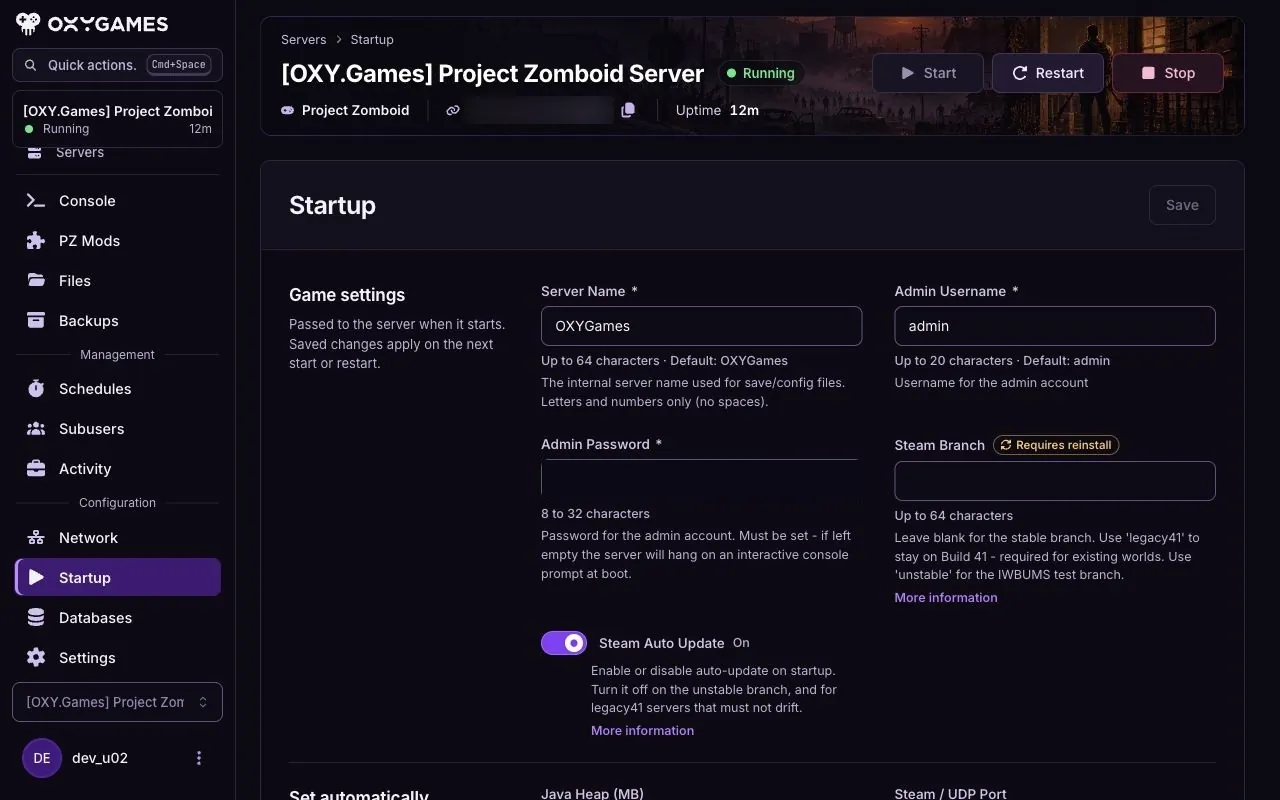
Set the initial credentials
Section titled “Set the initial credentials”Open Startup and fill in Admin Username and Admin Password for the initial admin account. Store these privately. For an existing account, read the password section below before changing values.
-
Start and join
Section titled “Start and join”Click Start, wait for
Server started, then join your server using the admin credentials as Account username and Account password. Enter the separate Server password too if required. -
Check your permissions
Section titled “Check your permissions”Look for the in-game admin panel on the left. If it is missing, confirm which account you joined with before granting rights through the console below.
Grant or remove admin rights
Section titled “Grant or remove admin rights”Use the exact Account username, not the character’s name. Run the appropriate command in the panel console without /; an existing admin can use the chat form with /.
| Action | Panel console | In-game admin chat |
|---|---|---|
| Grant admin | setaccesslevel "Alex" "admin" | /setaccesslevel "Alex" "admin" |
| Return to ordinary player | setaccesslevel "Alex" "none" | /setaccesslevel "Alex" "none" |
The developer’s access-level reference explains roles; a console example shows the form without a slash.
If you get User ... is not in the whitelist, check the exact account name and have the player join first if the server allows it. For a restricted server, arrange account access before retrying. Do not substitute a new account name if you want to keep the same character.
Change an existing account password
Section titled “Change an existing account password”If you can still log in, the developer’s administration reference documents /changepwd "old-password" "new-password" in game. Use your own values and update the saved account password in Favorites afterwards.
If you cannot log in, contact support with your server and account name. Do not assume changing Admin Password on Startup resets an existing account. Do not delete account databases to recover access.
Check sandbox changes
Section titled “Check sandbox changes”The admin panel exposes sandbox options, but saving a value does not prove its effect is immediate or retroactive. Check the specific option in game and after a planned restart. For file edits, follow the server settings guide and use the file manager while the server is stopped. A restart alone is not proof that an existing world adopted every setting.
Extra tips
Section titled “Extra tips”- Normal play: remove your account’s admin role with
none, or keep a separate survivor account and reuse that account’s exact login. - Admin effects: check god mode and invisibility after changing roles before continuing normal play.
- Password recovery: send support the error and account name, never the password.