

Backups
OXY keeps infrastructure backups, but those are for disasters on our side. For a broken world, a bad plugin or a modpack update gone wrong you want your own backup, made a minute before the change.
- Create a backup before a change
- Review the backup before restoring
- Restore a backup when needed
- Check automatic backup availability
Create a backup
Section titled “Create a backup”-
Open Backups
Section titled “Open Backups”Click Backups in the panel’s left menu. Existing backups are listed here with their date and size.
-
Create Backup
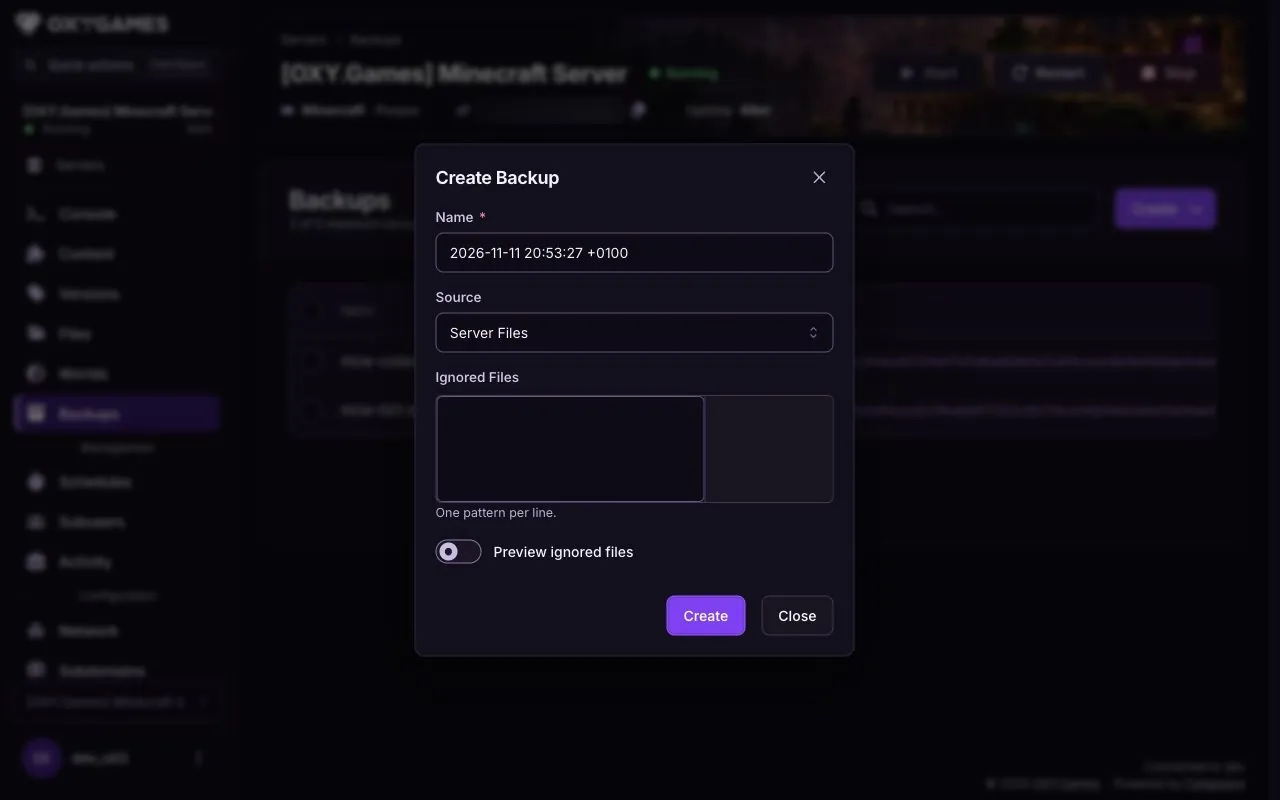
Section titled “Create Backup”Click Create → Create Backup and fill in:
- Name: something you recognize later, such as
before-modpack-update. - Source: choose the source shown for your server.
- Ignored Files: leave empty, unless you want to skip large folders such as
logs.
Click Create Backup.
- Name: something you recognize later, such as
-
Wait for it to finish
Section titled “Wait for it to finish”Wait until the panel shows the backup as complete before changing server files. Open the three-dot menu for the actions available on your backup.
Restore a backup
Section titled “Restore a backup”-
Stop the server
Section titled “Stop the server”Click Stop in the console first. The panel stops the server during the restore anyway, but a clean stop saves the current world properly and doesn’t kick players mid-action.
-
Choose Restore
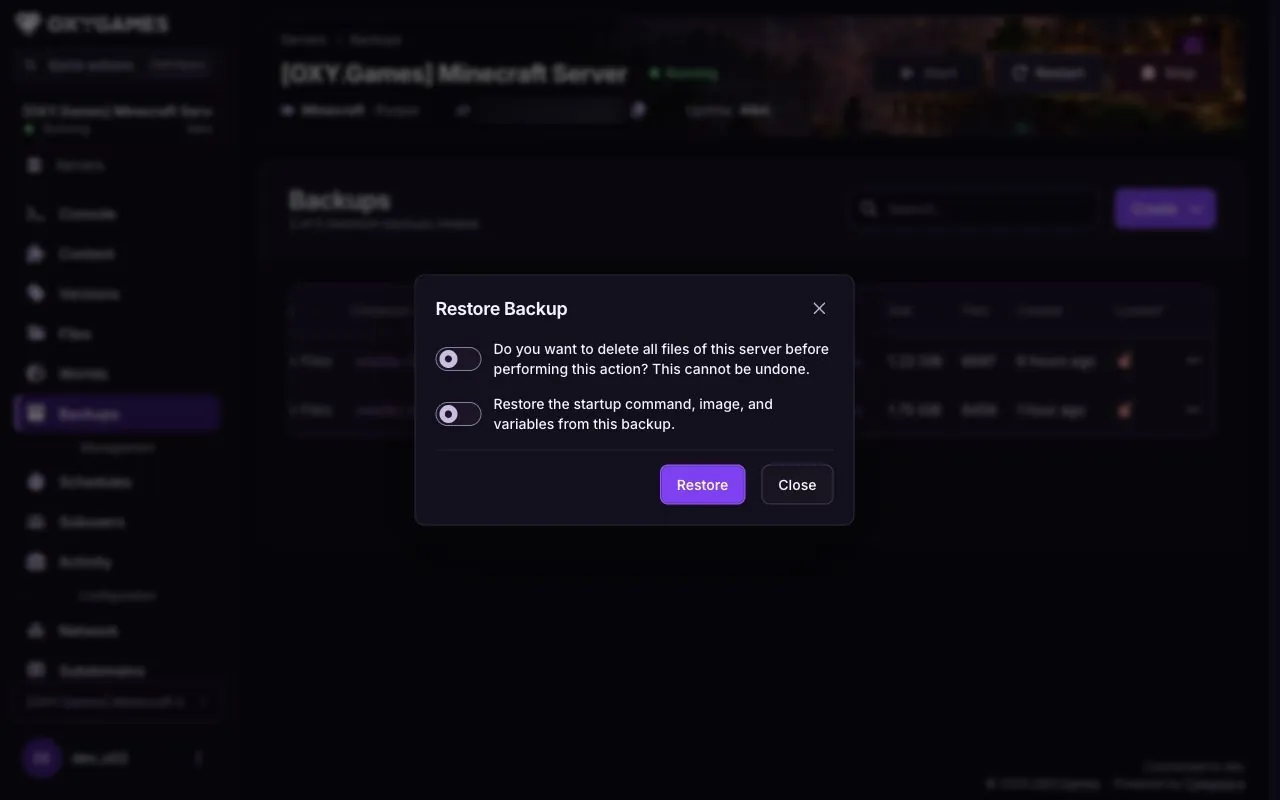
Section titled “Choose Restore”Click the three dots next to the backup and choose Restore.
-
Decide about existing files
Section titled “Decide about existing files”Review both switches in the restore dialog. Deleting current files can remove anything absent from the backup. The second switch also restores startup settings. If you are unsure which files and settings will change, ask support before confirming.
-
Start the server
Section titled “Start the server”Click Start and check the console for errors.
Automatic backups
Section titled “Automatic backups”Open Schedules and look for a way to create a schedule. If your server offers it, set a time and add a Create backup task, then save the schedule. Run or wait for its first occurrence and check that a completed backup appears under Backups; keep a downloaded copy of any recovery point you cannot afford to lose. Ask support if the controls differ or before relying on automatic retention.
Extra tips
Section titled “Extra tips”- Download before big changes such as switching from Paper to Forge; a local copy is the only one you fully control.
- Only the world needed? Review Ignored Files before creating the backup.
- Project Zomboid progress missing? Follow Restore your world to check the world, character data and recovery point before restoring.