

Add Balance to Your Account
There are three ways to add balance to your OXY.Games account:
- Using the “Add Balance” button in the top right corner
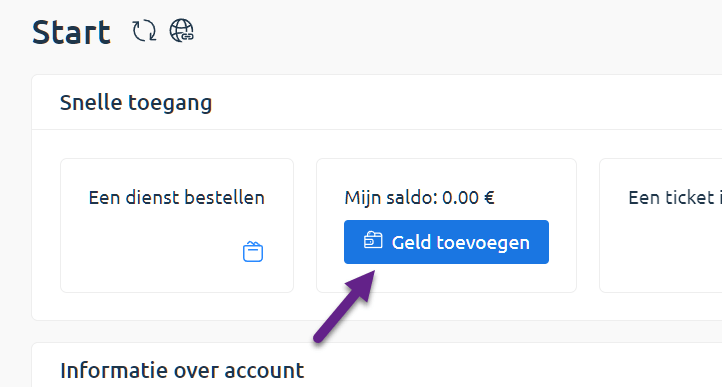
- From the Dashboard via the “Add Funds” button
- Via the menu Billing > Payments and then clicking “Add”
Step 1: Open the add balance form
Section titled “Step 1: Open the add balance form”Option 1: Click “Add Balance” (top right)
Section titled “Option 1: Click “Add Balance” (top right)”
Option 2: From the dashboard
Section titled “Option 2: From the dashboard”Click the “Add Funds” button inside the “Quick Access” block.
Option 3: From Billing > Payments > Add
Section titled “Option 3: From Billing > Payments > Add”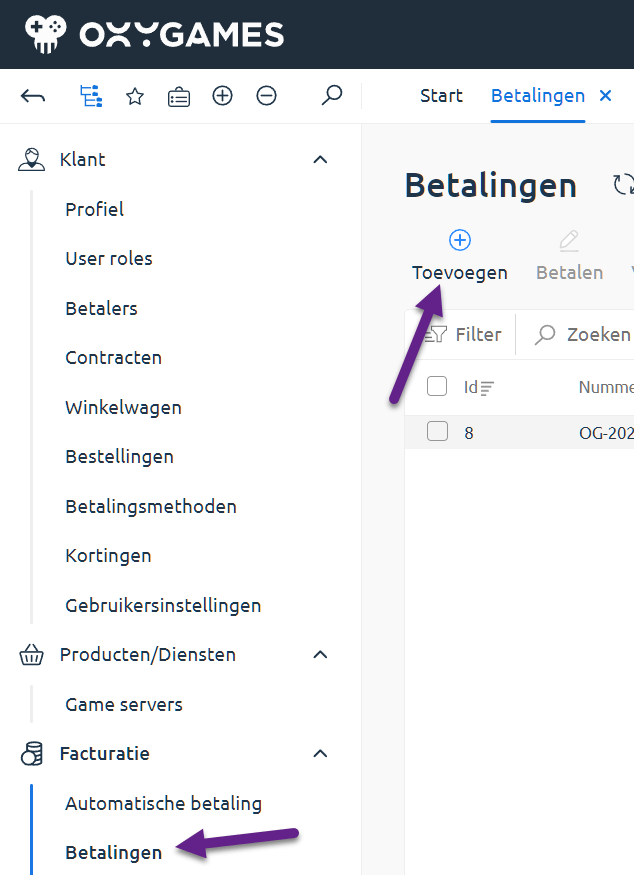
Step 2: Select a payer
Section titled “Step 2: Select a payer”Choose an existing payer from the list, or create a new one.
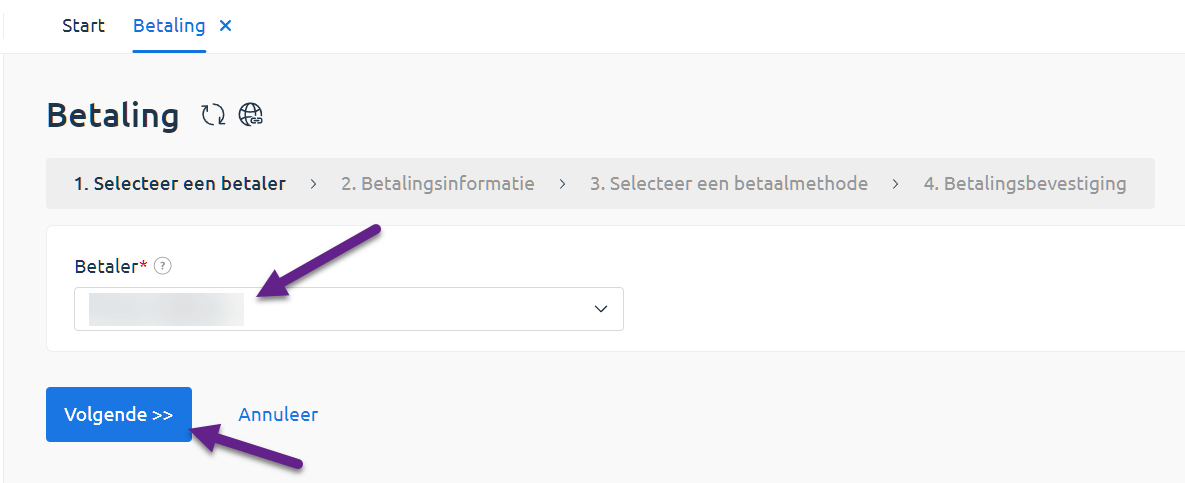
Step 3: Enter your details
Section titled “Step 3: Enter your details”Make sure your contact and address information is correct. Adjust it if needed.
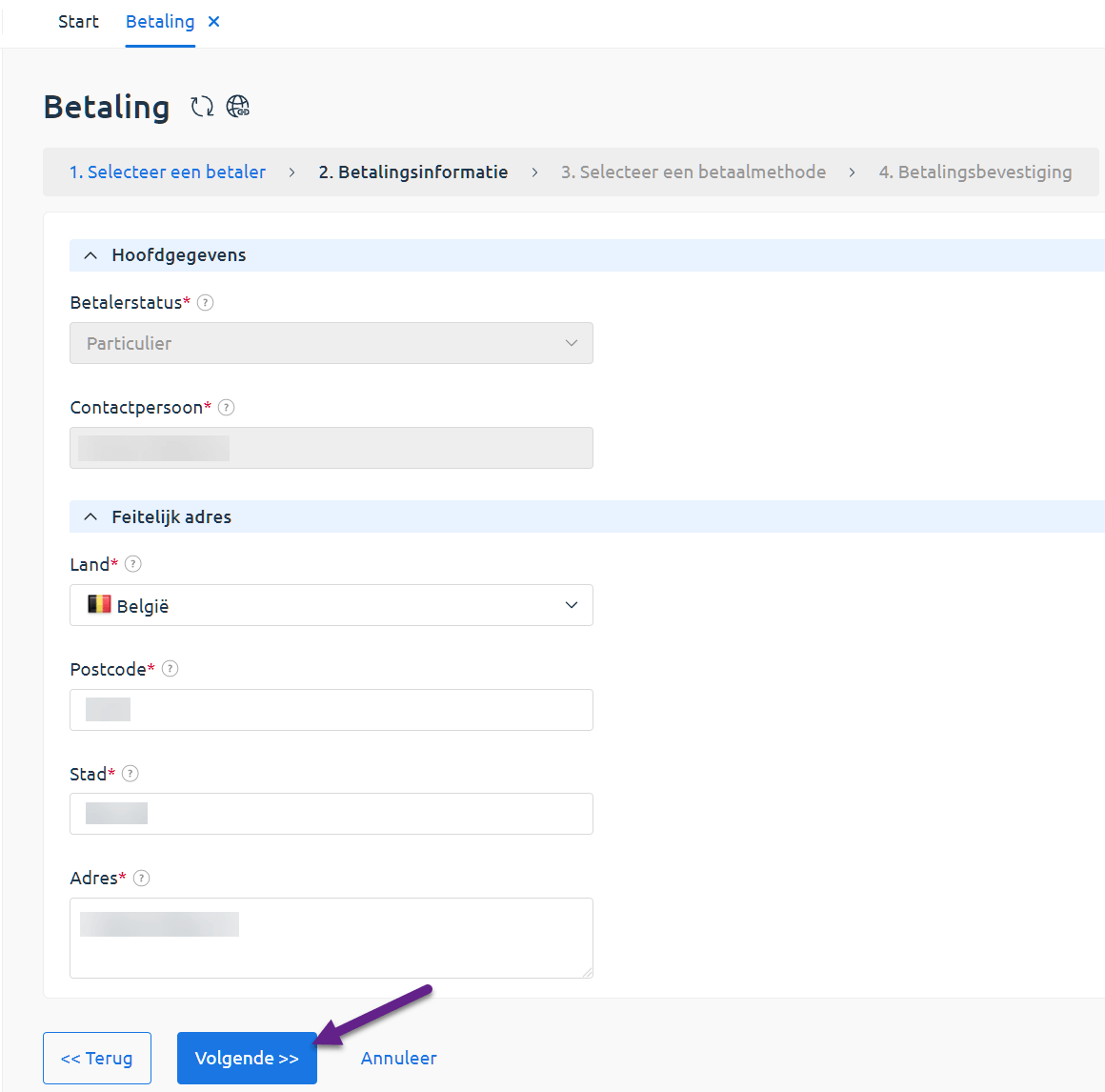
Step 4: Enter the amount and choose your payment method
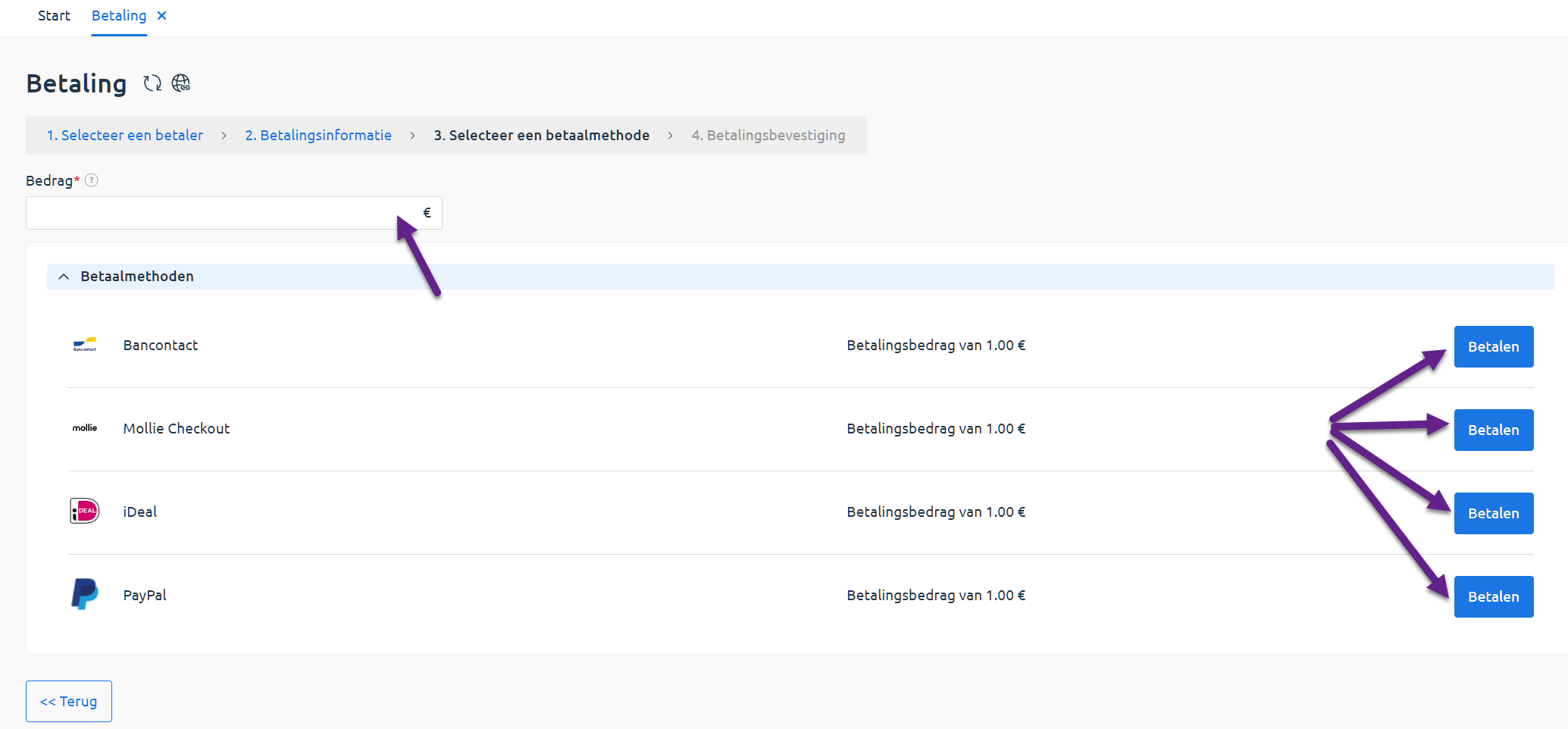
Section titled “Step 4: Enter the amount and choose your payment method”At the top, enter the amount you’d like to add.
Then select a payment method and click “Pay”.
Step 5: Confirm your payment
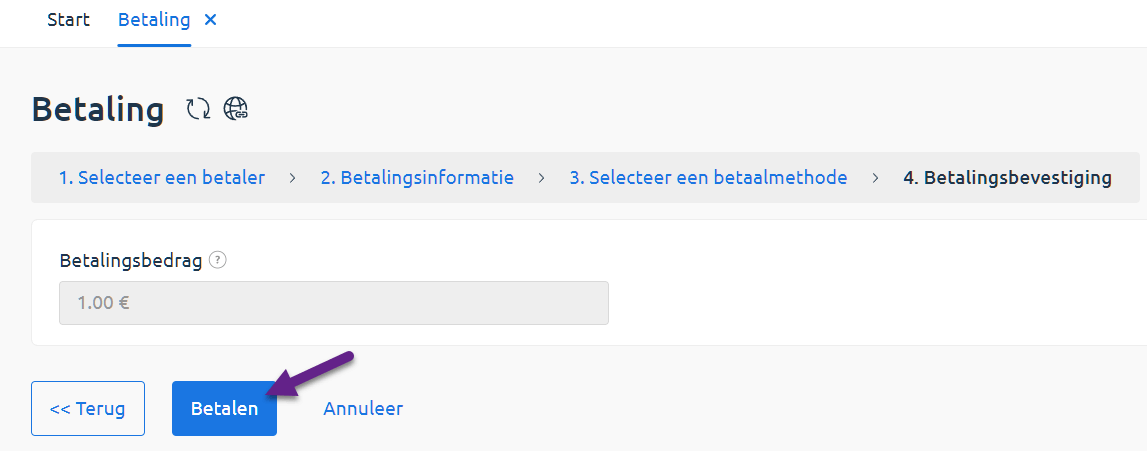
Section titled “Step 5: Confirm your payment”Double-check the amount. If everything is correct, click “Pay” to continue.
Step 6: Complete the payment with your provider
Section titled “Step 6: Complete the payment with your provider”You’ll now be redirected to your selected payment method (such as iDEAL, PayPal, or Bancontact). Complete the payment there.
After a successful transaction, you’ll be automatically redirected to your payments overview in the customer area.
Having trouble adding balance? Please contact our support via a ticket or email [email protected].