

Downloading your Minecraft world
Do you want to save your Minecraft world to your PC as a backup, to play locally, or to move to another host?
There are two ways:
- Using the Panel (File Manager)
- Using SFTP
Method 1: the panel
Section titled “Method 1: the panel”Step 1 – Open the File Manager
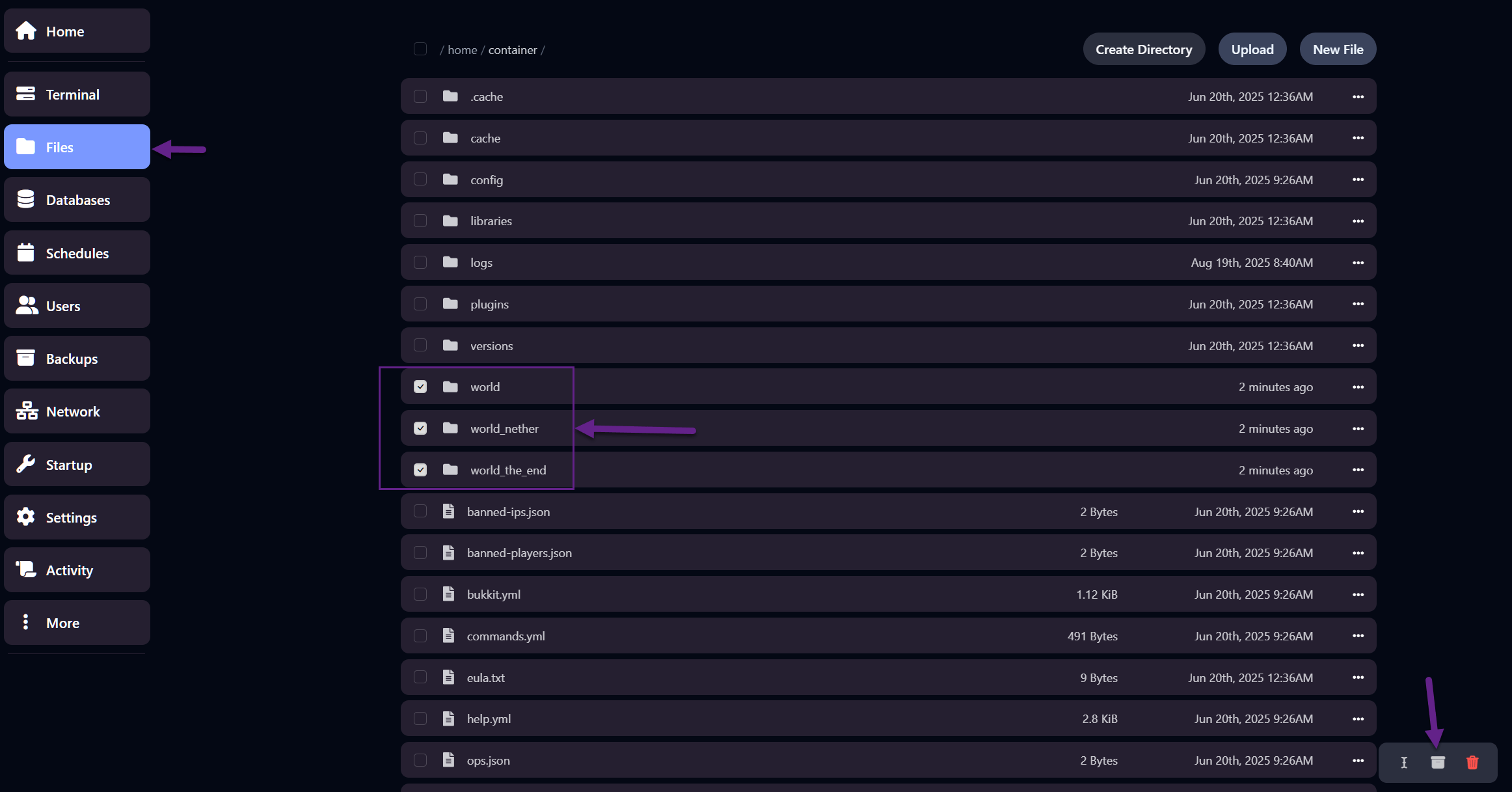
Section titled “Step 1 – Open the File Manager”In the OXY.Games panel, go to your server and click Files.
Step 2 – Select the world folders
Section titled “Step 2 – Select the world folders”Select these three folders:
worldworld_netherworld_the_end
Then click the archive icon at the bottom.
Step 3 – Alternative (per folder)
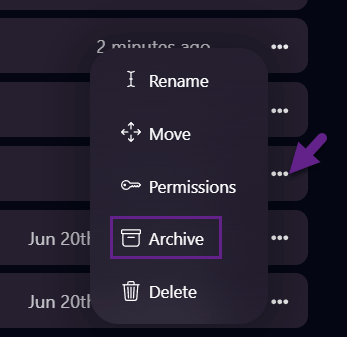
Section titled “Step 3 – Alternative (per folder)”You can also archive one folder at a time: click the three dots → Archive.
Step 4 – Download the archive
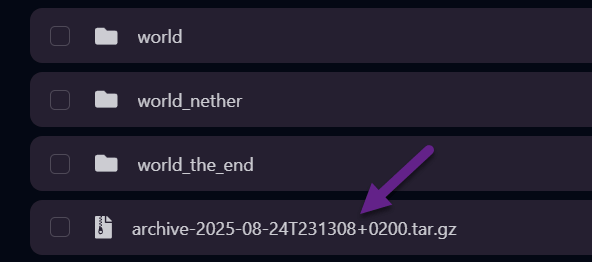
Section titled “Step 4 – Download the archive”After archiving, a .tar.gz file appears. Click to download.
👉 Done! You now have a world archive on your PC.
Method 2: SFTP
Section titled “Method 2: SFTP”SFTP is useful for large worlds or if you prefer direct access.
Step 1 – Follow the SFTP guide
Section titled “Step 1 – Follow the SFTP guide”This explains how to log in with WinSCP or FileZilla.
Step 2 – Download your world
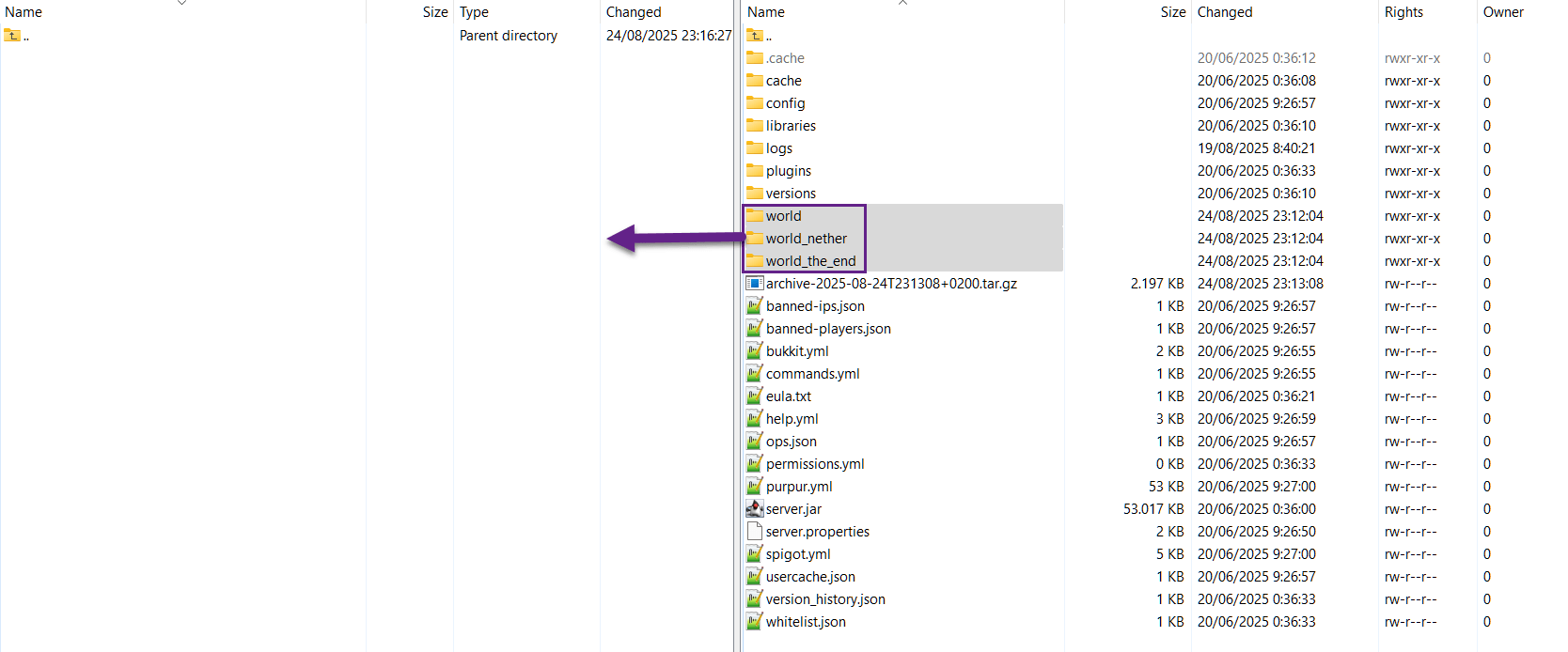
Section titled “Step 2 – Download your world”Once connected, go to /home/container/ (usually you are here already) and download the folders:
worldworld_netherworld_the_end
Step 3 – Result on your PC
Section titled “Step 3 – Result on your PC”After downloading, you will see the world folders on your computer.
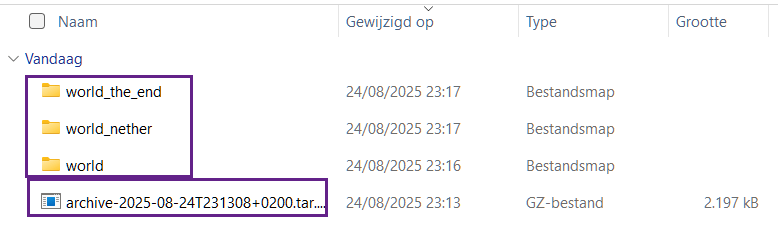
👉 If you made an archive in the panel, you can just download the .tar.gz file via SFTP and unpack it locally with 7-Zip.


ℹ️ Tips
Section titled “ℹ️ Tips”- Stop your server or make sure no one is playing while downloading to avoid corrupted data.
- For large worlds, SFTP is more reliable.
- Use 7-Zip to extract
.tar.gzfiles.