

Resetting Minecraft World (Start Fresh)
Want to start your Minecraft server from scratch? Or has your world become corrupted? This tutorial explains how to delete your existing world so that Minecraft generates a brand new one the next time your server starts.
🌍 Which folders should you delete?
Section titled “🌍 Which folders should you delete?”Minecraft stores your world data in one or more folders, depending on the server version:
worldworld_netherworld_the_end
With modpacks or custom setups, other folders may be used (like DIM1, DIM-1, Overworld, etc.).
📁 Step-by-step: How to delete your world
Section titled “📁 Step-by-step: How to delete your world”-
Open the File Manager
In the control panel, go to the Files tab.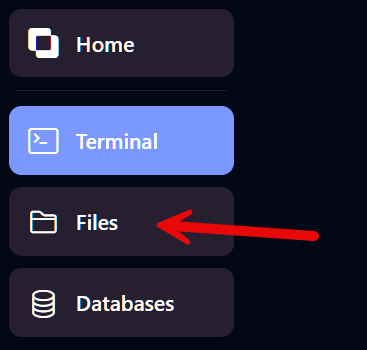
-
Select your world folders
Find and check the folders you want to remove, such asworld,world_nether,world_the_end.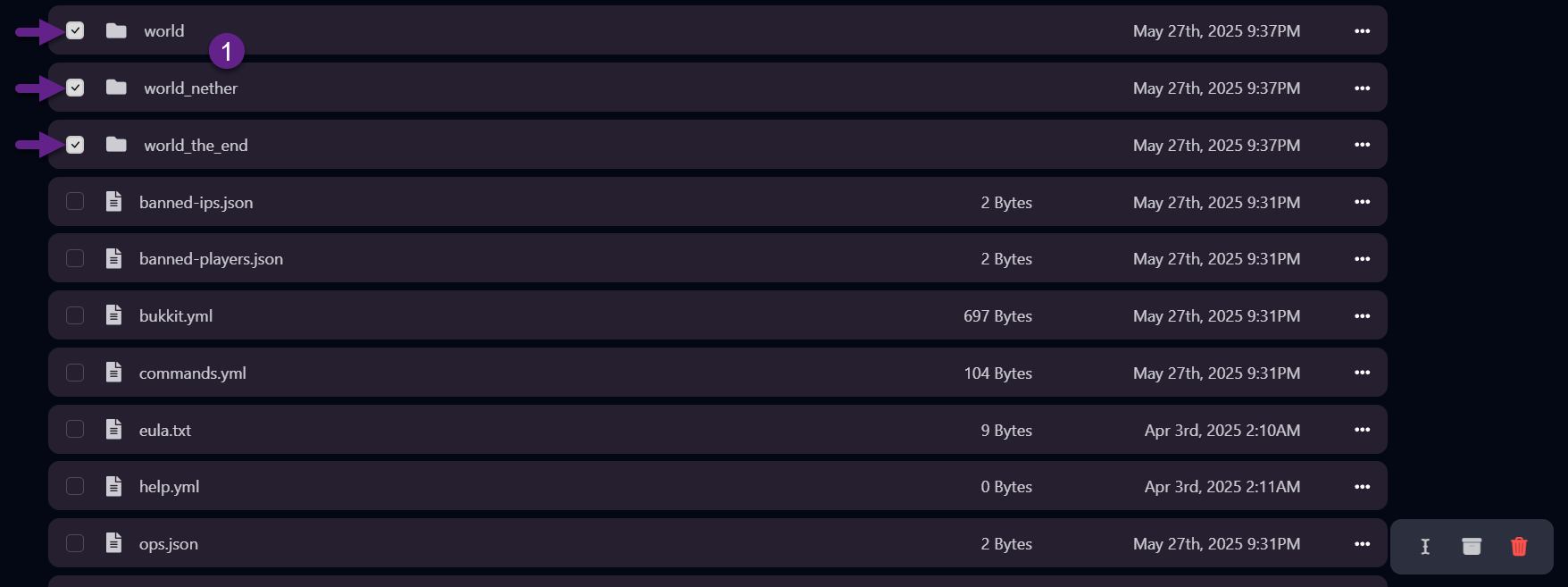
-
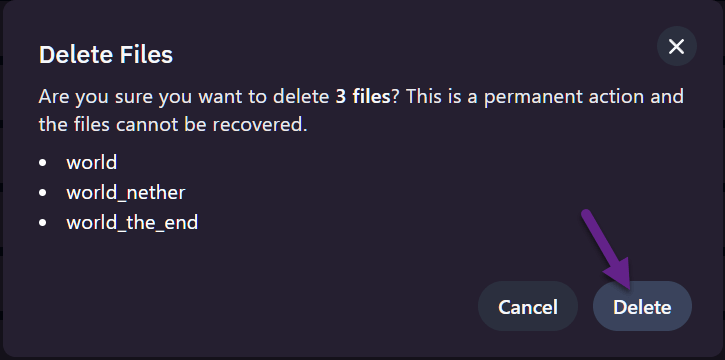
Delete the selected folders
Click the Delete button at the bottom or right-click > Delete. Confirm your choice.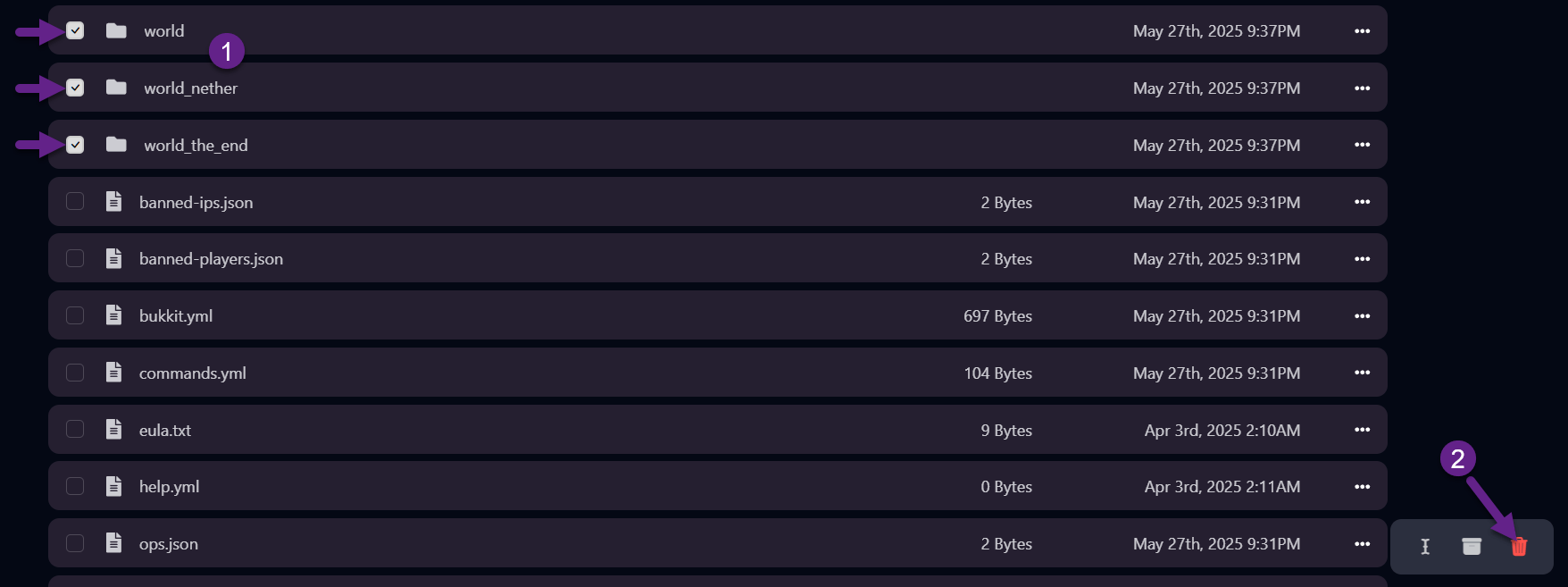
-
Restart your server
Go to the Terminal tab and click Start. Minecraft will now automatically generate a completely new world.
✅ Done!
Section titled “✅ Done!”Your server is now running with a brand new world. Time to build your next adventure!
💡 Extra tips
Section titled “💡 Extra tips”-
Want to use a specific seed for your new world? Check out this guide:
👉 Change World Seed -
Always make a backup before deleting important files:
👉 Create or Restore Backups