

How to set MOTD
Want your Minecraft server to stand out in the multiplayer list? Then the MOTD (“Message of the Day”) is just what you need!
This is the short message displayed below your server name in the Minecraft multiplayer list.
Example:
OXY.Games Server | 🎉 Survival & Minigames!ℹ️ What Is the MOTD?
Section titled “ℹ️ What Is the MOTD?”The MOTD is the first thing players see when adding your server to their multiplayer list.
It’s your chance to make a great first impression. You can use colors, symbols, or a funny line to attract attention.
🚀 How to Change Your MOTD
Section titled “🚀 How to Change Your MOTD”1. Stop Your Server First
Section titled “1. Stop Your Server First”Before changing your configuration, it’s safest to stop the server.
👉 Read how to start/stop your server
2. Open the File Manager
Section titled “2. Open the File Manager”- Go to panel.oxy.games
- Select your server
- Click Files in the menu
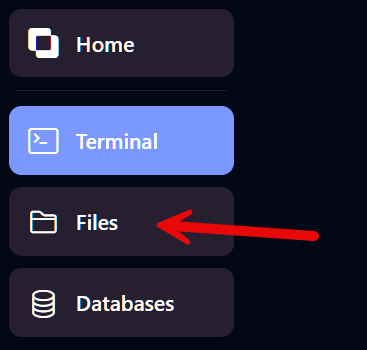
3. Open server.properties
Section titled “3. Open server.properties”Find the file named server.properties.
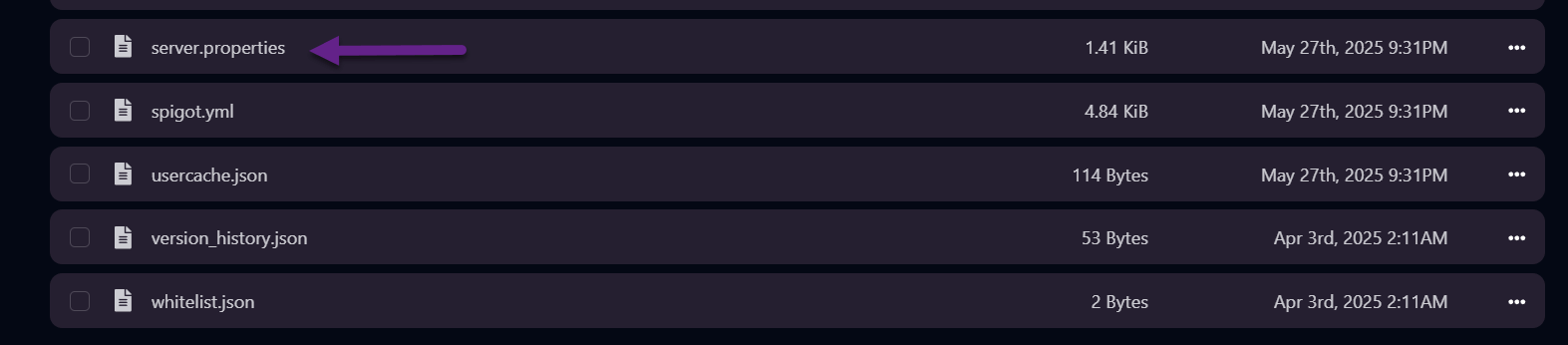
Click to edit it.
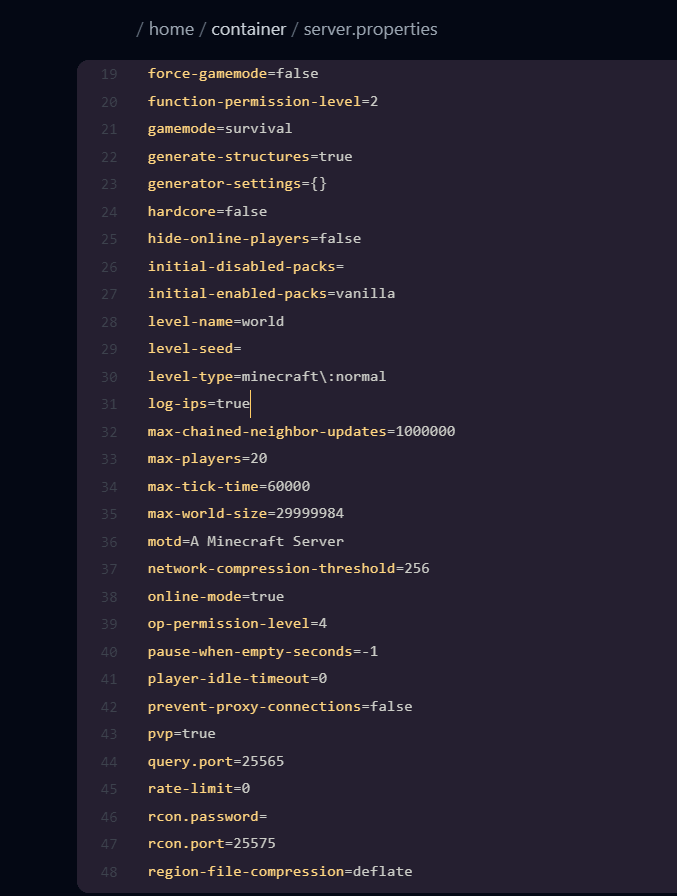
4. Find the motd= Line
Section titled “4. Find the motd= Line”You’ll see something like:
motd=A Minecraft ServerReplace the value with your custom message.
✨ You can use Minecraft color codes like §a, §c, etc.
Example:
motd=§bWelkom bij §eOXY§fGames!📌 Keep it on a single line — no line breaks.
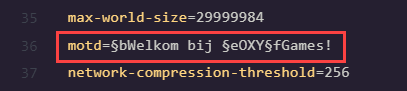
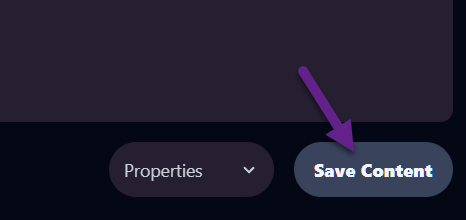
Click Save Content:
5. Restart Your Server
Section titled “5. Restart Your Server”The change only takes effect after a restart.
👉 Learn how to restart your server
👀 Result in Minecraft
Section titled “👀 Result in Minecraft”In the Minecraft multiplayer list, players will now see your custom MOTD.

💡 Bonus Tips
Section titled “💡 Bonus Tips”-
Use color codes to stand out:
§a(green),§c(red),§e(yellow),§l(bold),§n(underline) -
Keep it short: long messages will get cut off.
-
Use an online MOTD generator to preview how it looks in-game.
Need help or having trouble? Reach out via our support page — we’re happy to assist!