

How to submit a Support Ticket
This article explains how to create a support ticket and how to view or respond to existing ones.
You can use tickets to ask for help with technical issues, billing questions, or general support.
🔐 Important: Make sure you’re logged in at my.oxy.games before trying to submit a ticket. Without logging in, you won’t see the dashboard or support options.
📬 Submit a Ticket
Section titled “📬 Submit a Ticket”You can create a support ticket in several ways:
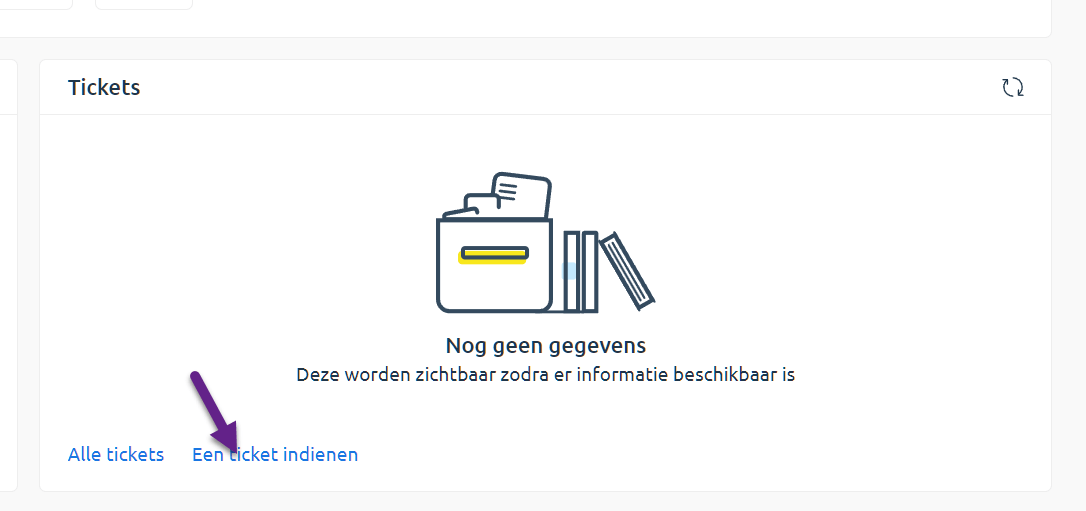
- Via the dashboard: click on Submit a Ticket
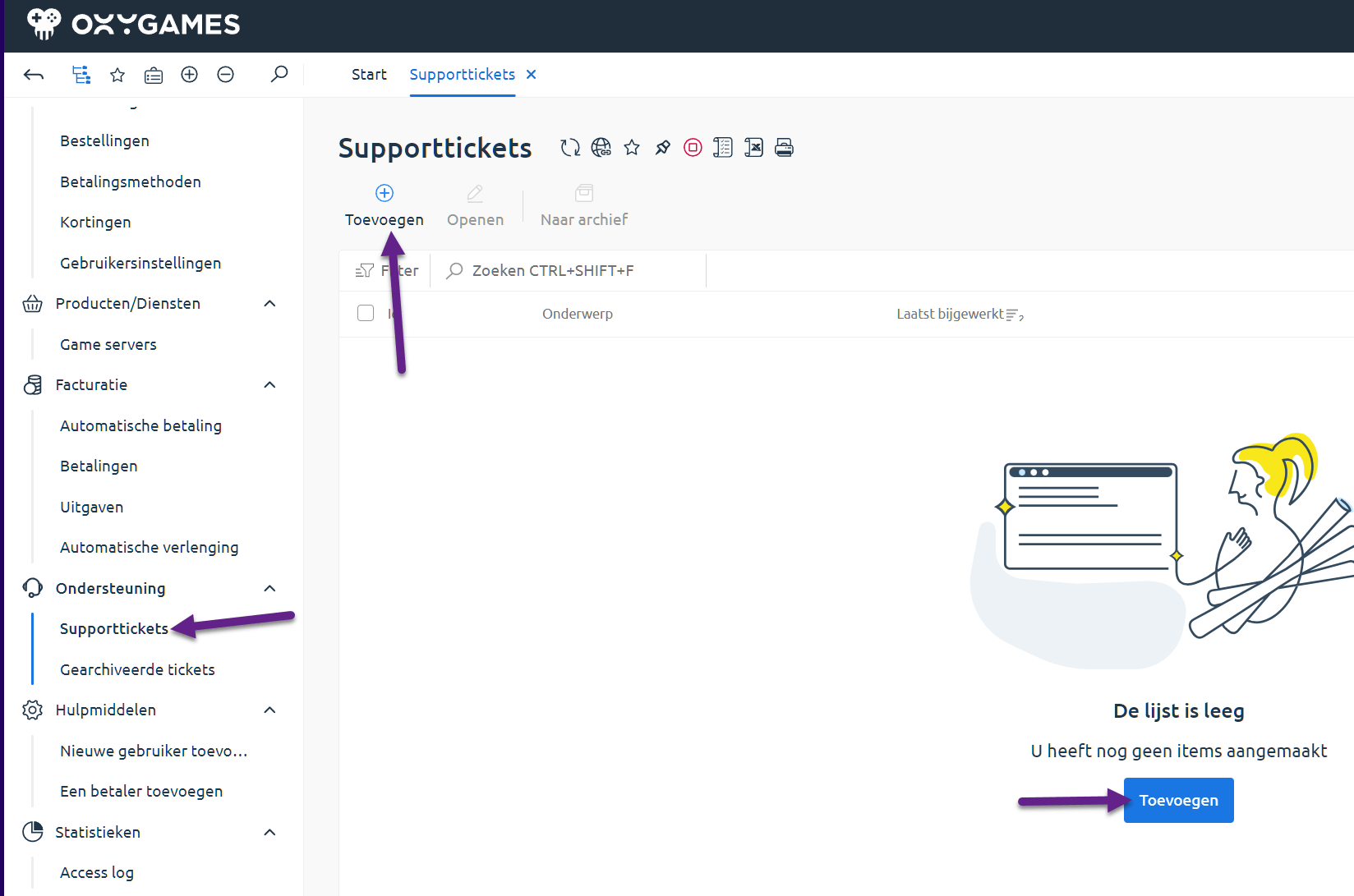
- From the menu: go to Support > Support Tickets and then click Add
- By email to [email protected] (be sure to use the email address linked to your account)
📝 Fill in the form
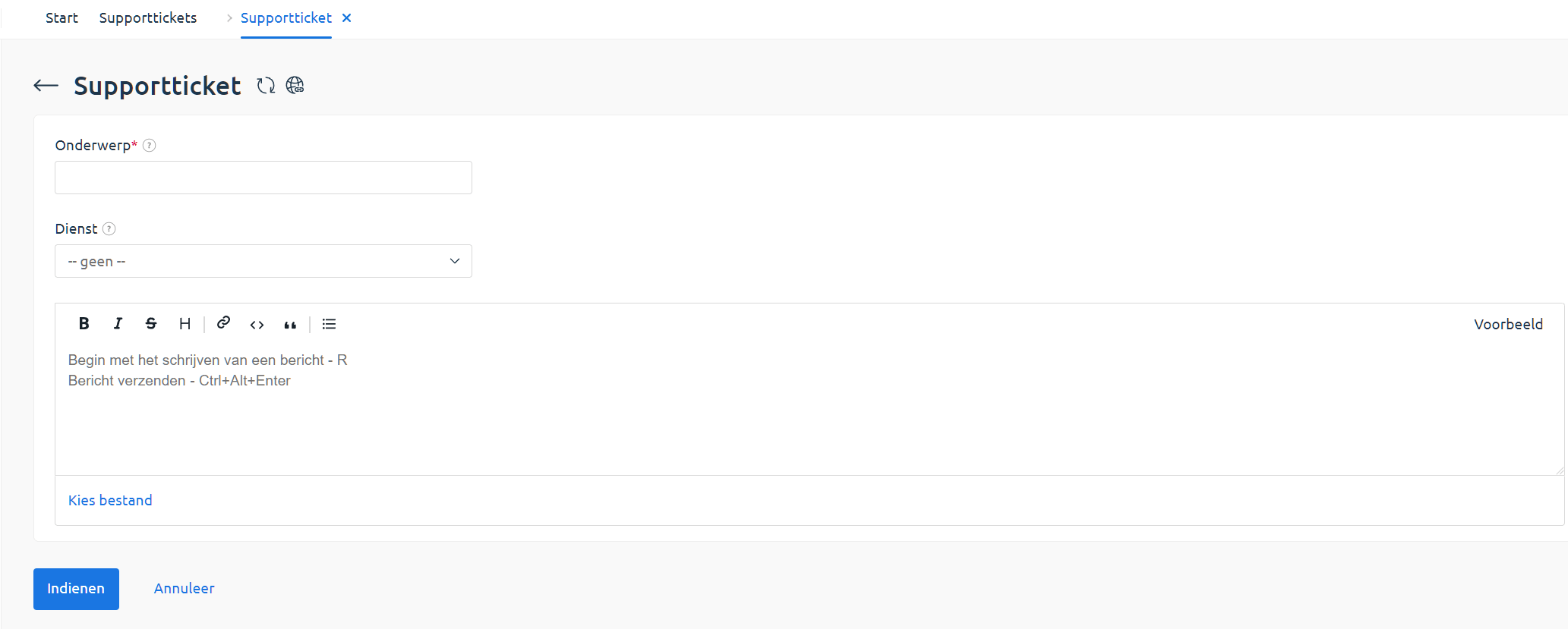
Section titled “📝 Fill in the form”When submitting a ticket, a form will appear where you can:
- Enter the subject of your question
- Optionally select the service you need help with
- Clearly describe your issue or question
- Optionally upload files (like logs or screenshots)
- Use the Preview button to see your message before sending
ℹ️ Tip: The clearer your description, the faster we can help. Include error messages or server names if possible.
Click Submit to send your ticket.
📄 View Submitted Tickets
Section titled “📄 View Submitted Tickets”After submitting, your ticket will appear under Support > Support Tickets.
You can see the ticket’s status and the latest updates.

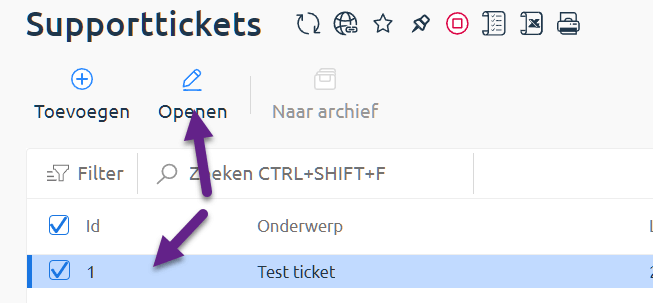
Double-click a row or select the ticket and click Open at the top:
🗨️ Reply to a Ticket
Section titled “🗨️ Reply to a Ticket”In the opened ticket, you’ll see the full message history and can easily add a reply.
You can also attach more files if needed.