

Replying to Support Tickets
When you receive a reply to a support ticket you’ve submitted, we’ll notify you by email.
You’ll also see a notification banner at the top of the customer area when logged in.
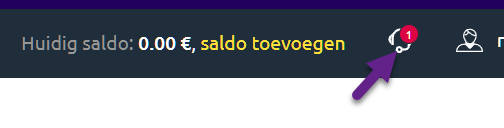
How to View and Reply to a Ticket
Section titled “How to View and Reply to a Ticket”You can access your support tickets in several ways:
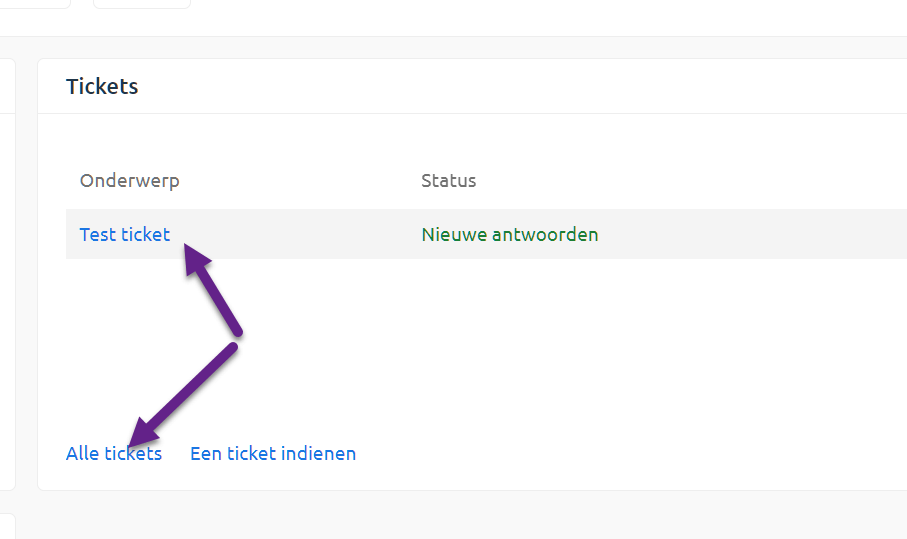
Via the dashboard
Section titled “Via the dashboard”On your dashboard, there’s a widget showing your current tickets. Click on a subject or All Tickets to go to the full list.
Via the left menu
Section titled “Via the left menu”Go to Support > Support Tickets to see a list of all your support requests.
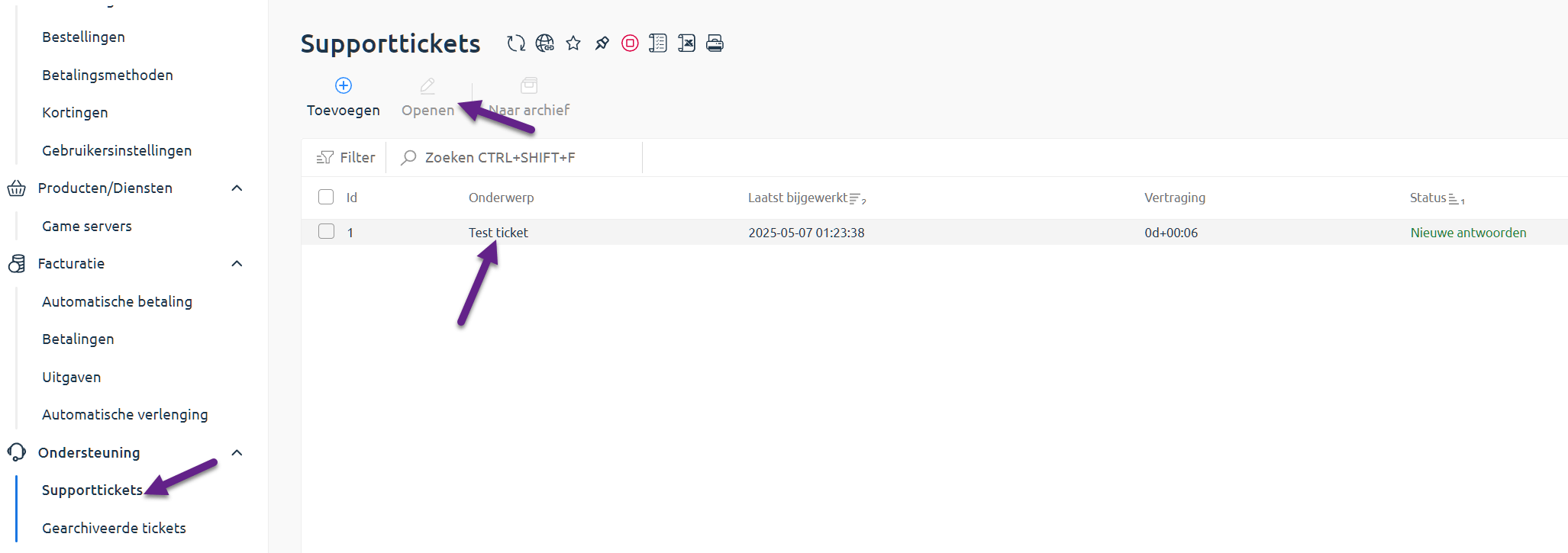
Click a ticket in the list, or select it and click Open.
Replying to the Ticket
Section titled “Replying to the Ticket”In the opened ticket, you’ll see the full conversation with our support team.
At the bottom of the page, you can type your reply, upload attachments, and preview your message before sending.
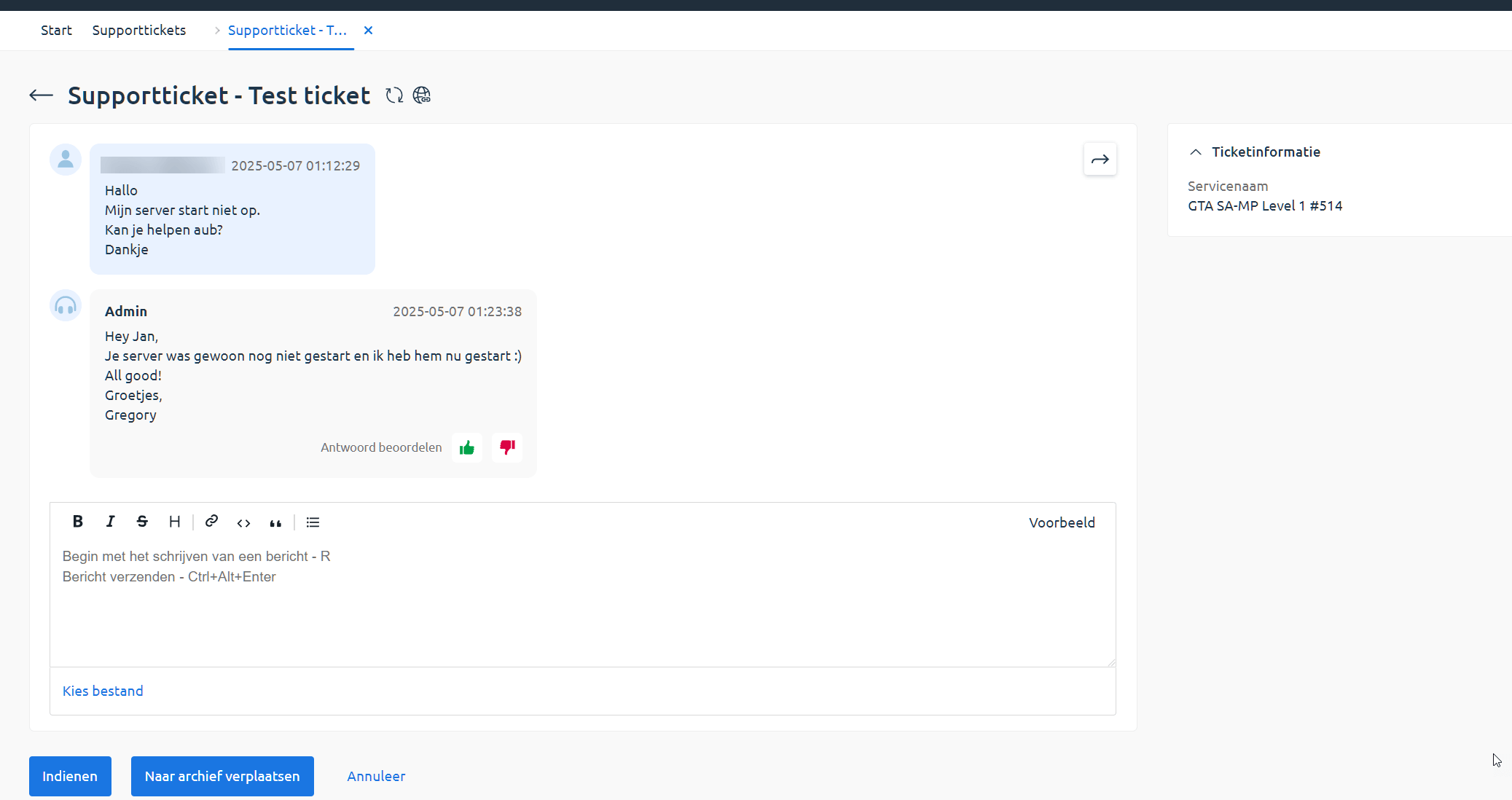
Add your reply with any additional information, clarification, or questions, and click Submit.
Your response will be added to the ticket.
💡 Tip: You can also reply directly by email. Just make sure to send your response from the same email address that’s registered to your OXY.Games account.