

Connect to Your Project Zomboid Server
Your server is running — time to get in. This guide shows where to find your IP and port, how to add the server in Project Zomboid, and what to send your friends so they can join too.
✅ Before you start
Section titled “✅ Before you start”- Your server is started — see Start and stop your server. The first start takes a few minutes (world generation), that’s normal.
- Project Zomboid on Steam on your PC. Every player needs their own copy.
- If your server runs Workshop mods, every player needs the same mods — see Install mods.
1. Find your server IP and port
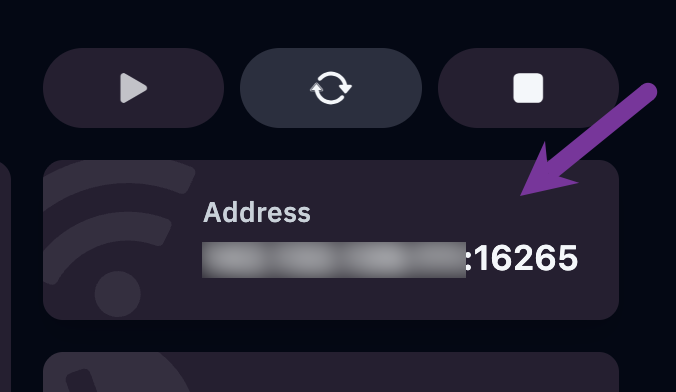
Section titled “1. Find your server IP and port”Log in to the game panel and open your Project Zomboid server. On the Console tab, check the status is Running and copy the address shown at the top — it looks like 123.45.67.89:16261.
Project Zomboid asks for the IP and the port in separate fields, so split it at the ::
- IP:
123.45.67.89 - Port:
16261
2. Add the server in Project Zomboid
Section titled “2. Add the server in Project Zomboid”- Launch Project Zomboid and click Join in the main menu.
- Open the Favorites tab and click Add server (bottom left).
- Fill in:
- Name — anything you like, this is just your label.
- IP — the IP from step 1.
- Server port — the port from step 1 (usually
16261). - Account username and Account password — pick your own. The first time you join, this creates your character account on the server. Remember it: you need it every time you log back in.
- Server password — only if you set one in the panel’s Startup tab. Leave empty otherwise.
- Click Save.
3. Join the server
Section titled “3. Join the server”Select your server in the Favorites list and click Join server. The first join takes a while — the game downloads the map data it needs. Then create your character and you’re in.
If your server has Workshop mods, Project Zomboid shows a list of missing mods when you connect. Let it subscribe and download them, then join again.
4. Invite your friends
Section titled “4. Invite your friends”Send them the same three things:
- IP and port from step 1
- the server password (if you set one)
- which build (41 or 42) and which mods the server runs
They follow step 2 and 3 with their own account username and password.
Still stuck?
Section titled “Still stuck?”- Restart the server in the panel and try again once the Console says it’s fully loaded.
- Check the Console for
Server started— if it’s still generating the world or stuck on an error, nobody can join yet. - Double-check the port: it’s the number after the
:, and it goes in the Server port field, not in the IP field. - Getting
Workshop items missingor a version mismatch? Match the build and mod list on your side, or ask the server owner which ones to install. - Create a support ticket with your server name, the exact error message and the last lines of your Console.