

Add an extra port
Need a separate port for Geyser, a voice chat plugin or a map plugin? Add one yourself in the game panel. An allocation is an IP address and port assigned to your server.
- Open Network
- Add an allocation
- Copy the assigned port
- Configure your plugin
Add and use a port
Section titled “Add and use a port”-
Open Network
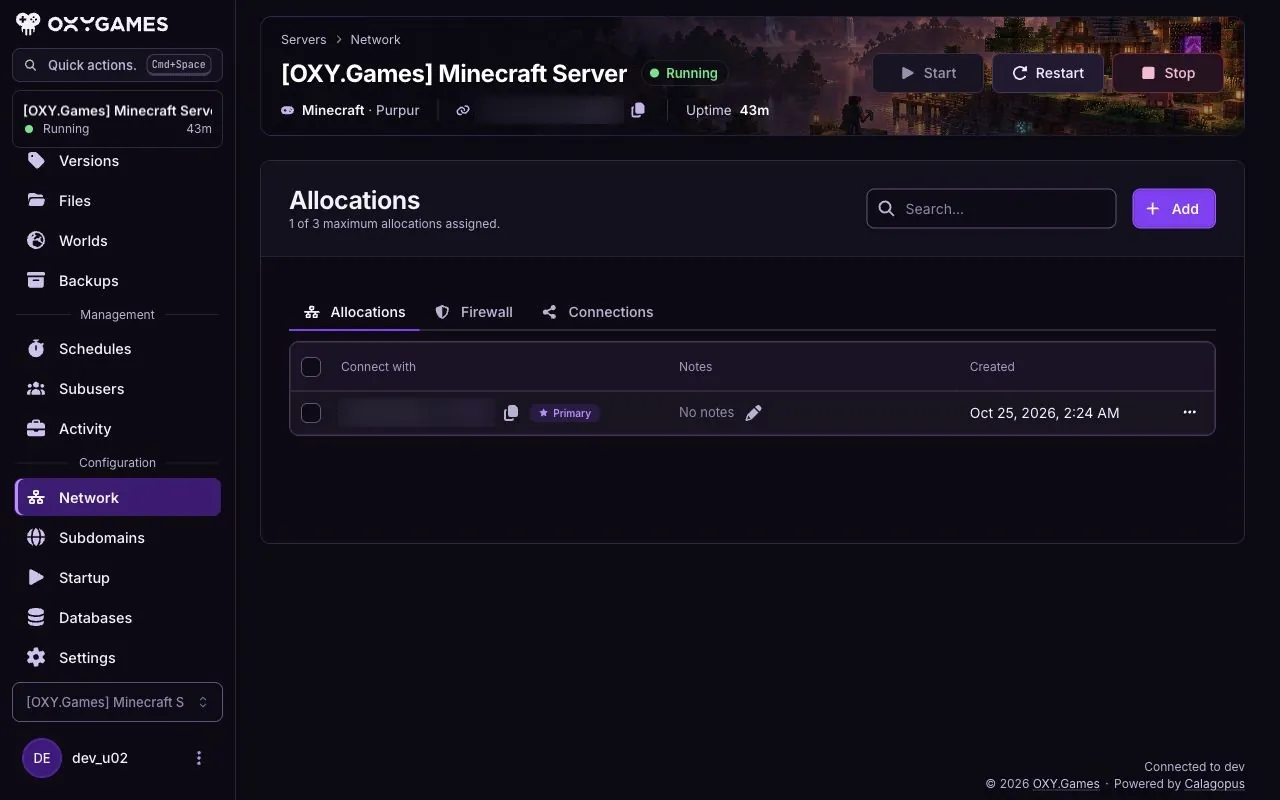
Section titled “Open Network”Open your server in the game panel and choose Network → Allocations. Check the existing allocations and the limit shown above the list.
-
Add an allocation
Section titled “Add an allocation”Click Add once and wait for the list to update. Find the new allocation and note its assigned IP address and port. Use the assigned number rather than choosing a port yourself.
-
Configure the plugin
Section titled “Configure the plugin”Enter the new port in the relevant plugin’s configuration. Follow that plugin’s guide for its address and protocol settings, then restart the server if the guide requires it. Adding an allocation does not configure the plugin automatically.
For Bedrock crossplay, follow Set up Geyser. Keep the existing Primary allocation for the Java server; use the additional port for Geyser.
-
Check the connection
Section titled “Check the connection”Check the console for startup or port errors and connect through the plugin or client. Confirm that the configured port matches the new allocation.
Extra tips
Section titled “Extra tips”- Keep ports separate. Give services that need a dedicated port their own allocation.
- Keep active allocations. Removing a port that a plugin uses interrupts connections to it.
- Use the assigned number. A plugin’s default port is not automatically available on your server.